
Applying workflows
Building a workflow defines how it behaves. Applying it puts a page under its control: the page enters the initial state, the byline shows the new status, and any actions, approvals, expirations, or events on that state take effect. Aura Workflows offers three ways to apply a workflow: one page at a time, in bulk across a space or set of labels, and automatically as new pages appear.
Per-page application
Section titled “Per-page application”The simplest path is from the page itself. When a page has no workflow, the Aura Workflows byline shows an Add workflow button that opens a picker. The user chooses a workflow and confirms; the page enters the initial state immediately and the byline updates.
Per-page application is gated by Confluence’s content-update permission, so anyone who can edit the page can apply a workflow to it. This is deliberate: authors know whether a draft is ready for review. Removing a workflow is asymmetric: it lives behind the byline’s dropdown menu and requires space-admin permission.
When a workflow is removed, the instance and its pending notifications are deleted. Side effects from earlier actions (restrictions, labels, title edits, official-version changes) are not reversed. Once a state has run its actions, those changes belong to the page. To lift a restriction the workflow added, undo it through Confluence’s standard restriction dialog, or transition the page into a state whose actions undo what you want before removing the workflow.
Bulk application
Section titled “Bulk application”For larger rollouts, open a space’s Aura Workflows page, click into a workflow, and choose Apply. The modal has two tabs. Pages lets you search for individual pages or tick Apply to all pages in this space to target the whole space. Labels lets you enter one or more labels and apply the workflow to every page in the space carrying any of them. Bulk apply requires space-admin permission.
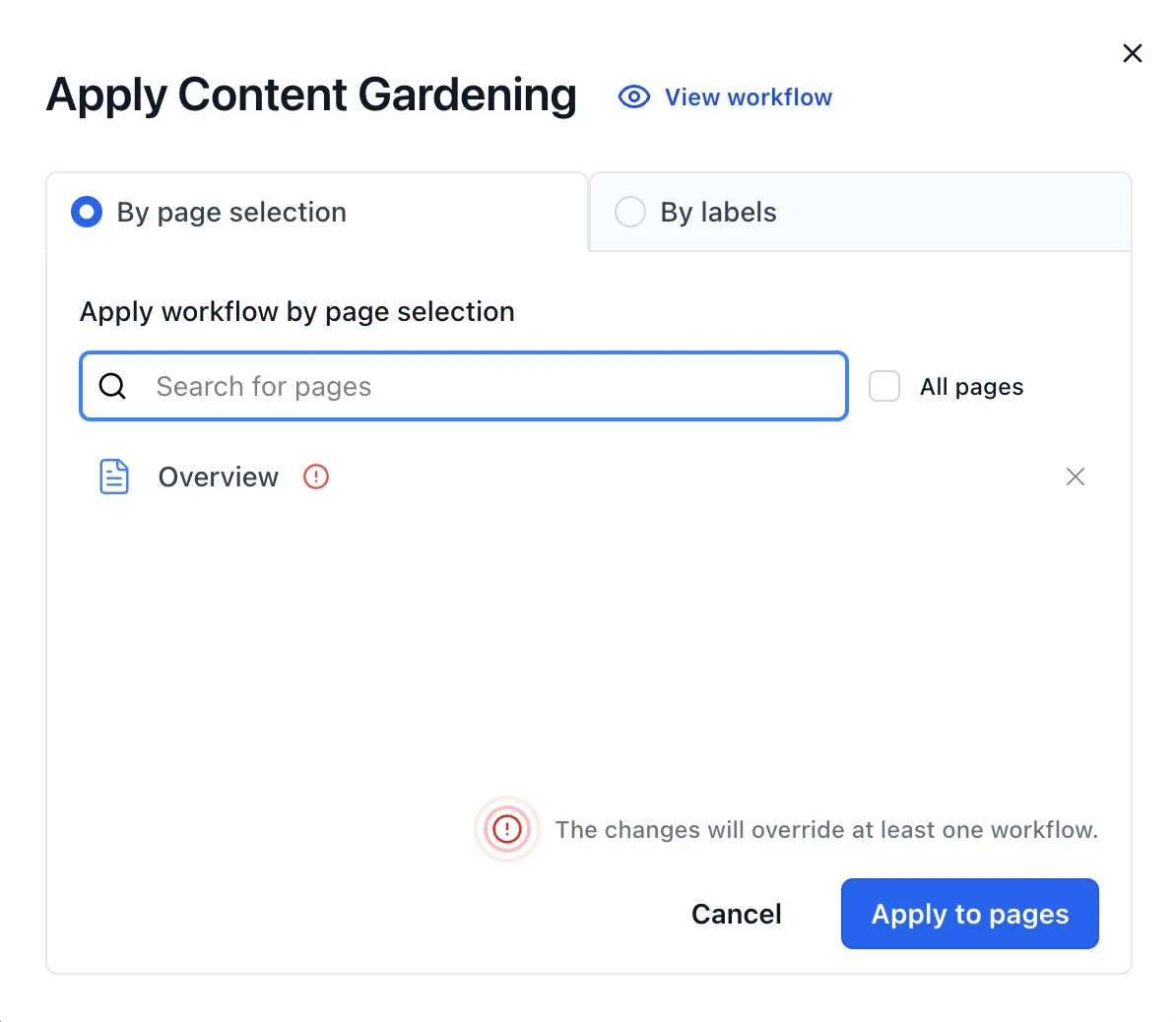
The job runs in the background and returns immediately. Aura Workflows works through matched pages in batches, and the workflow card surfaces an in-progress indicator while it runs. Cancellation is honoured at the next batch boundary rather than mid-batch, so a few more pages may be applied after you click cancel. There’s no hard cap on page count, but very large spaces take minutes to hours depending on how many actions each state runs.
Every page enters the workflow at its initial state, the same as a per-page apply. Variables and metadata are not prompted up front; required variables stay required, but they’re filled in per page from whatever Aura Workflows can resolve when the page enters the workflow: page properties, space defaults, the workflow’s variable defaults, and any global defaults. A variable like @page_owner_group resolves to a different value on each page, which is the point. Pages where the variable can’t be resolved start the workflow without it, and any field that depended on it stays empty until set manually. Variables are read once at the moment a page enters a state; later changes to the page or the workflow do not retroactively rewrite an instance’s stored values.
Auto-apply rules
Section titled “Auto-apply rules”A space admin can configure a workflow to apply automatically going forward, from Apply Workflows in the space’s Aura Workflows page or globally from the global app page. Two kinds of rule are supported. A fallback workflow applies to every new page in the space that doesn’t match a more specific rule. Label conditions apply a chosen workflow to pages carrying a specific set of labels, with All labels requiring every label in the list and Any label requiring at least one. Space and global rules are evaluated together: the first matching label condition wins, and the space’s fallback is used if nothing matches.
Auto-apply runs in two situations: when a page is created, and when a label is added to an existing page. Both are one-shot per page. Aura Workflows checks whether the page already has a workflow before applying one, and silently skips if it does. Adding an auto-apply rule does not retro-apply to pages already in the space. For that, run a bulk apply once. Removing or changing a rule affects only future events; pages auto-applied earlier keep the workflow they got. There is no event for label removal, so taking a label off a page never removes the workflow.
Saving the auto-apply form does not enqueue any backfill. The rules sit in storage and are consulted on the next create or label event.
When configurations change
Section titled “When configurations change”Editing a workflow that’s already in use affects live instances immediately, because the builder doesn’t version. State definitions, action lists, and approval rules are read fresh each time a state is entered or an action runs. Variable definitions and metadata fields are read live too, but values already resolved on an instance are not recomputed: adding a new metadata field to a workflow won’t backfill values on pages already running it. Deleting a workflow deletes every instance of it, but does not roll back side effects from past actions.
For configuration details, see the workflow builder, variables and metadata, approvals, and actions.