
Approvals
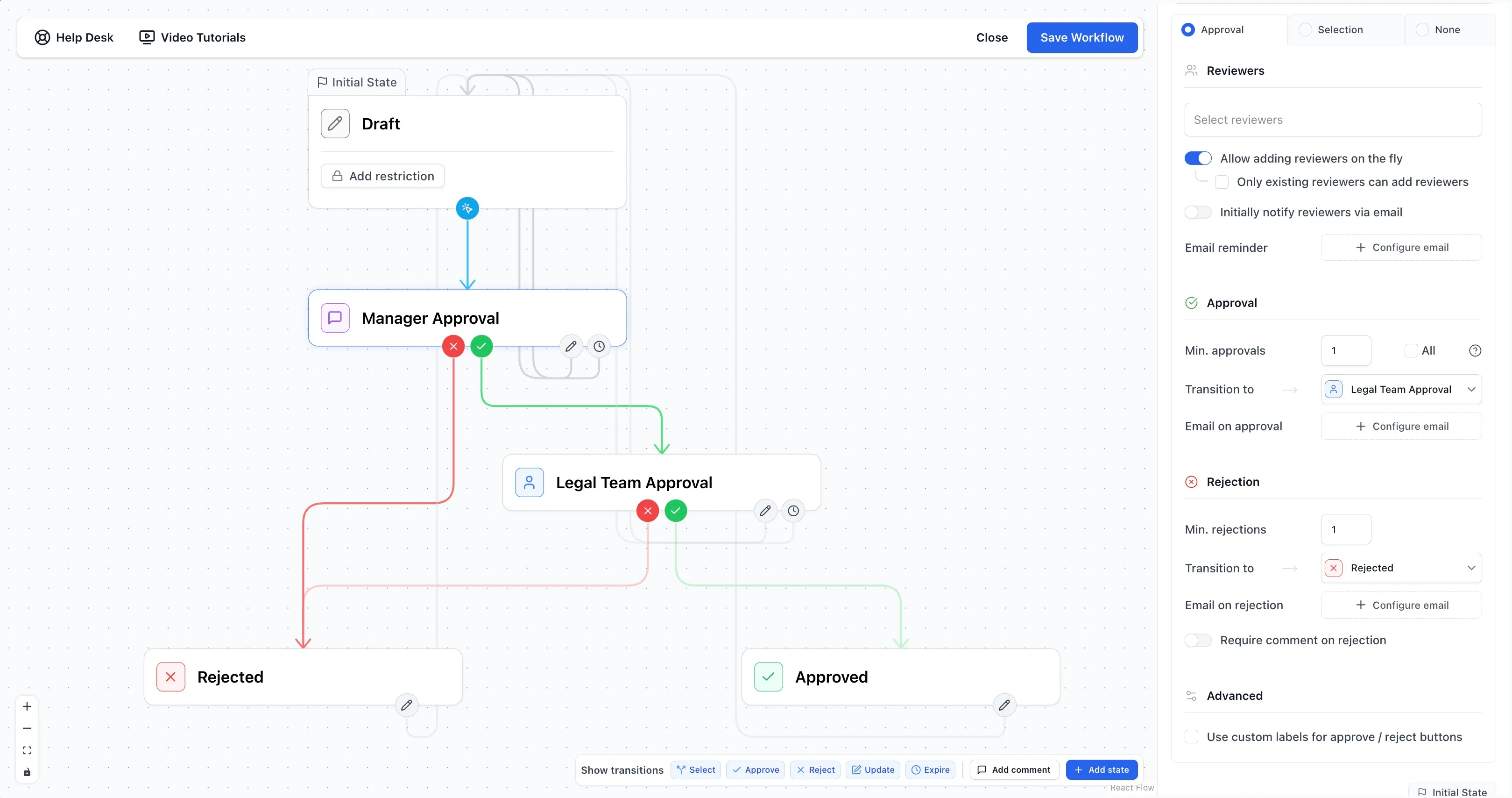
An approval is a gate. A page sits in a state, reviewers weigh in, and the page only moves on once their verdict crosses a threshold you configure. For the configuration UI, see the workflow builder.
Reviewers
Section titled “Reviewers”A reviewer is a user, a group, or a variable that resolves to users or groups. You configure them once in the builder under the approval transition; from there they’re the preassigned reviewers.
The preassigned list is resolved into a concrete reviewer set the moment the page enters the approval state, not when the workflow is applied. Variables are evaluated against page, page-property, and space-variable values at that instant. Once resolved, the list is frozen on the workflow instance: changing a variable’s value, editing the variable on the page, or editing the reviewer list in the builder has no effect on a pending approval. To re-resolve, the page must leave the state and come back in.
Groups are the exception. A group reviewer is stored as a group, not as the list of its members, and membership is checked when somebody clicks Approve or Reject.
Adding reviewers on the fly
Section titled “Adding reviewers on the fly”When Allow adding reviewers on the fly is on, reviewers can be added and removed after the approval has started. By default anyone with edit permission on the page can manage reviewers; Only existing reviewers can add reviewers restricts that to users currently on the reviewer list. Preassigned reviewers cannot be removed; only on-the-fly additions can be taken back out.
Limit adding to the following reviewers narrows what can be added rather than who can add. With the option on, configure a fixed set of users and groups in the picker below; the runtime Manage reviewers modal drops its directory search and shows that set as a quick-add list instead. It’s independent from Only existing reviewers can add reviewers — both can be on at the same time, and they stack: the first decides whether the page editor sees the button, the second decides which names are on the list once they open it. With the option on but the list empty, the modal hides the add UI entirely.
Groups in the limited set behave the same as group reviewers everywhere else: they’re added to the approval as a single entry, not expanded into their current members. The membership check still happens at click time on the approval itself.
Reviewers added this way are full reviewers and count toward Min. approvals and Min. rejections the same as preassigned ones. The person adding them chooses, per action, whether to send the new reviewer an email. If a removal pushes the remaining approvals over the threshold (or, under Require all reviewers approval, leaves no one outstanding), the workflow transitions immediately on removal.
Initially notify reviewers via email controls the one-shot email sent when a page enters the approval state. It goes to every preassigned reviewer, with groups and variables resolved to individual accounts. On-the-fly additions don’t trigger it; they have their own opt-in toggle in the add-reviewer dialog.
Thresholds
Section titled “Thresholds”By default an approval requires one approval and one rejection: first response wins. Min. approvals and Min. rejections raise either bar. The thresholds are tracked independently and run as a race: with Min. approvals of 2 and Min. rejections of 1, a single rejection moves the page to the rejected state immediately, even if one approval is already in. Whichever threshold is reached first decides the transition.
Counting is by distinct user. Someone on the reviewer list twice (named directly and also a member of a reviewer group) counts as one vote. Group reviewers don’t contribute on their own; only the actual users behind them, when they click, do.
Require all reviewers approval replaces counting with unanimity. Every individually named reviewer and every member of every reviewer group must approve before the page transitions. Group membership is resolved on each click, so adding a person to a reviewer group while the approval is pending means that person must now approve too. A single rejection still moves the page to the rejected state; unanimity applies only to the approval direction. Because membership is live, deactivated users or users removed from all reviewer groups drop out of the set instead of blocking it.
Require comment on rejection is enforced in the UI: the reject dialog won’t submit without a comment.
Require 2FA adds an authenticator-app code check before either approval direction is recorded. It does not change reviewer resolution or thresholds; it only decides whether the review action is allowed to submit. See 2FA approvals for the enrollment and review behavior.
Reminders
Section titled “Reminders”With an Email reminder configured, the first reminder is scheduled for the Send X after transition delay after the page enters the state. Reminders dispatch on an hourly tick, so a 30-minute delay fires at the next hour boundary rather than exactly 30 minutes in. Only reviewers still pending receive them.
If repetition is on, each reminder schedules the next one at the configured interval after itself. Otherwise the reminder fires once and clears. The schedule clears automatically when the approval completes, so nobody gets a reminder for a decision already made.
Approve and reject emails
Section titled “Approve and reject emails”Each approval transition can carry an email that fires on approval and another on rejection, sent the moment the workflow transitions. Recipients are resolved at send time: Author, owner, and last editor are read fresh from the page, so the right people get the email even if those roles changed during the review. Pending reviewers resolves to whoever was still pending on the just-completed approval. Variables in the recipient list are evaluated against current page and space values per send.
The message body can also include placeholder chips for workflow variables, workflow metadata, and page details. Those placeholders resolve when the approval or rejection email is sent, using the current values for that page.
These emails fire as part of the transition and have no delay of their own. For deferred or scheduled emails, use a send-mail action on the destination state.
Editing a workflow mid-approval
Section titled “Editing a workflow mid-approval”The builder shows an orange unsaved-changes indicator the moment a workflow is in use. Saving while approvals are pending is allowed, but changes hit live instances asymmetrically. Anything read at click time (group memberships, comment requirements, threshold values, custom button labels, email contents and recipient rules) picks up the new value immediately. Anything snapshotted at state entry (the resolved preassigned reviewer list, the reminder schedule) keeps the old value until the page transitions out and back in.
Editing thresholds or adding a recipient to an approval email takes effect on every pending approval the next time someone clicks, but editing the reviewer list does not change who’s already been assigned. To reshape an approval that’s actively running, transition the affected pages back to a previous state and forward again, or reset the workflow.
Custom button labels
Section titled “Custom button labels”Under Advanced, Use custom labels for approve / reject buttons replaces the default Approve and Reject labels with anything that fits, such as Publish, Sign off, or Send back. The labels are cosmetic. Reviewers see them on the buttons in the page sidebar and in approval emails, but the underlying transitions, thresholds, comments, history events, and analytics are identical. A “Publish” click still records as an approval and a “Send back” click still records as a rejection.