
Variables and metadata fields
Variables
Section titled “Variables”A variable is a named placeholder you reference from inside the workflow definition, most often in an approval’s reviewer list, but also in the targets of an Add restriction action, the recipients and message bodies of emails, the duration or date of an On expiration event, and as the target space of a Publish page action. In any selector that supports them, type @ and pick from the suggestions, or type a fresh name to create one. The picker shows existing variables alongside live users and groups, with a (variable) label to distinguish them. In email message bodies, use the Placeholder menu to insert variable chips. Every variable Aura Workflows detects is collected in the Variables section of the workflow sidebar, where you set its type and toggle Required.
Variables come in five types:
- Users: any combination of users and groups, used for reviewer lists and restriction targets.
- Text: a free-form string.
- Duration: a length of time, used by expirations.
- Date: an absolute date, also used by expirations.
- Space: a Confluence space, used as the target of Publish page.
Type is fixed at creation and constrains where the variable can be referenced.
Values can be set at three levels. Space variables, in a space’s settings, hold defaults for every workflow running in that space. Confluence’s Page Properties macro contributes page-level source values for users and date variables: any row whose key matches a variable name is read in automatically. The Page variables modal, opened from the workflow byline on a page, holds explicit page-specific values. When the same variable is set at multiple levels, explicit page variables win over Page Properties values, which win over space variables.
If a variable already has a value from the space or from a Page Properties macro, it still appears in the Page variables modal. The modal shows those lower-priority sources in an Other sources column, so users can see what the page currently inherits and then type a page-specific value to override it. Clearing the page-specific value makes Aura Workflows fall back to the next available source again. Required variables are considered filled when any source in that priority chain has a value, so a space default or Page Properties value can satisfy the requirement without forcing a page override.
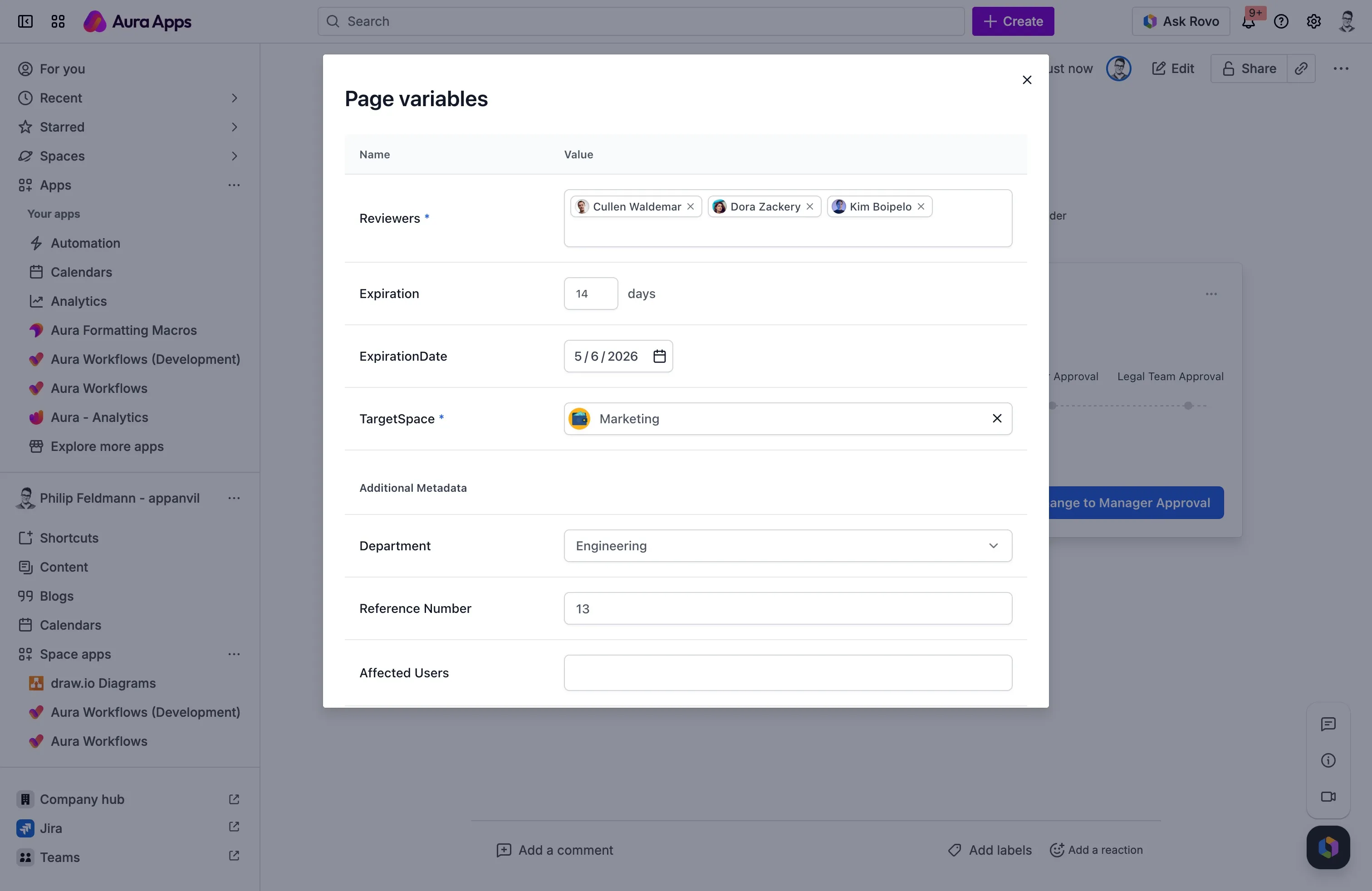
The byline shows an “Unset variables” prompt with a Set variables button whenever a required variable has no value at any level, and the workflow’s normal state controls stay hidden until it’s resolved. Optional variables that go unset contribute nothing: a reviewer list with only an unset variable produces no preassigned reviewers, an unset email recipient is dropped, and an unset target space for Publish page skips the action.
The crucial behavior is when values are read. When a page enters an approval state, the reviewer list, including any variables in it, is resolved once and written into the page’s reviewer roster; editing the variable afterwards does not change who is reviewing that page. Expiration works the same way: the duration or date variable is read when the state is entered, the resulting expiry is stored on the instance, and later changes do not shift it. For everything else, the read happens at execution time. Action email recipients and message placeholders, Add restriction targets, the target space of a Publish page action, and approval reminder, approve, and reject emails are all looked up against current values when the action or email runs. Change a variable between two transitions and the next transition sees the new value; the previous one does not.
Editing a value through the Page variables modal takes effect immediately on subsequent uses. Use it either to fill an unset required variable or to override an inherited space or Page Properties value for this page only. Removing a variable from the workflow definition while live instances exist leaves stored values orphaned but does not break those instances: references that already resolved remain on the page, and any new reference finds nothing. Adding a new required variable to a workflow already in use makes every instance show the unset-variables prompt until Aura Workflows can resolve a value from the page, Page Properties, or space level.
Metadata fields
Section titled “Metadata fields”Metadata fields define a small per-page schema that travels with the workflow. The Additional Metadata section of the workflow sidebar is where you add them with Add field, choose a type, and toggle Required. The five types are:
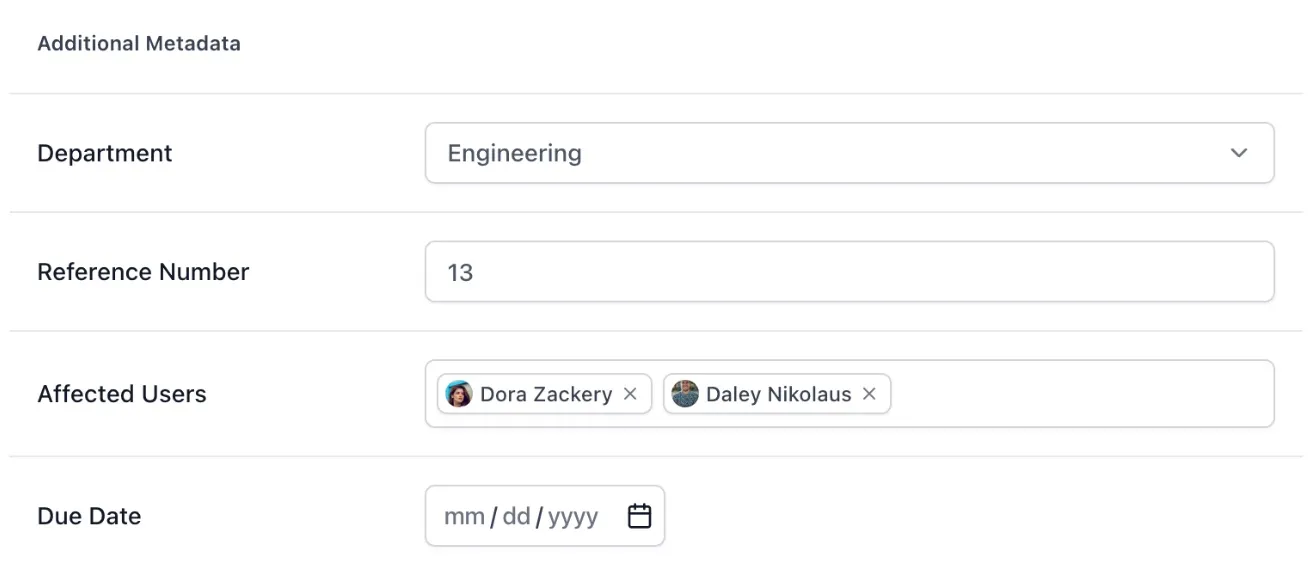
- Users
- Number
- Text
- Select: opens an inline list where you define the available options.
- Date
Values are entered in the same Page variables modal that handles variables, in a metadata section underneath, and edited there afterwards. Required metadata behaves like a required variable: while the field is empty, the byline shows the “Unset variables” prompt and the workflow’s state controls stay hidden until it’s filled in. Anyone with edit permission on the page can set or change values, and metadata changes are not separately recorded in the workflow history.
Metadata travels with the page: if the page is moved between spaces, its metadata follows, and Confluence search indexes the values so they’re discoverable from standard search. The values are also exposed through Confluence’s Page API, which makes them readable from third-party systems and automations. This is useful for syncing a workflow’s structured fields into another tool, driving downstream automations off changes, or building custom reports on top of policy metadata. To surface specific values inside the page body, drop the Aura Workflows Metadata macro and pick a field; see the metadata macro reference for the full set of options.
Schema changes are tolerant. Removing a field leaves stored values dormant but harmless. Adding a non-required field makes it appear empty on existing instances; adding a required field forces the unset-variables prompt until each page provides a value. Avoid changing a field’s type once data exists, because the stored value won’t match the new input and the field will look empty on affected pages. Removing a single-select option already in use does not clear existing values; the page keeps the orphaned string until someone edits it through the modal, at which point the option is no longer offered.