
Reviewing content
A page in your review queue means someone built a workflow that requires sign-off from named people before it can move on. This page covers what that looks like from your seat. For how the rules are configured, see Approvals.
How you find out
Section titled “How you find out”Email is usually the first signal. If the admin switched on Initially notify reviewers via email, you get a one-shot email when the page enters the review state, naming the page and linking back to it. Reminders after that depend on the workflow, and they only go to reviewers who haven’t voted, so they stop once you act.
The Confluence byline at the top of the page also shows the workflow’s current state, typically In Review, though the admin may have renamed it. Clicking the state opens a panel with reviewer details, vote counts, and the action buttons.
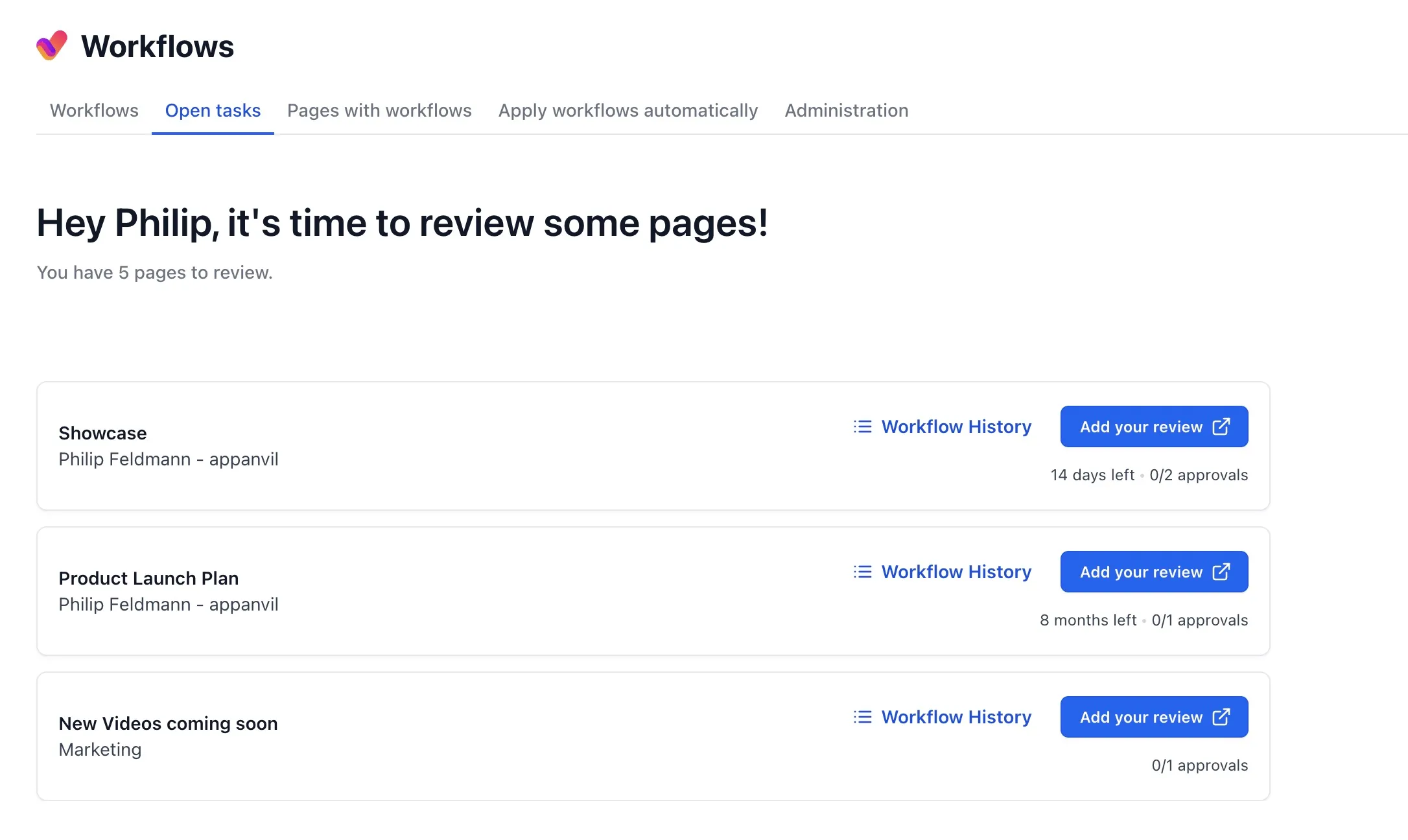
For a single place that lists everything waiting on you, open Apps → Aura Workflows in the Confluence top navigation and switch to the Open tasks tab. It shows every page across the instance where you’re a reviewer on a pending approval, with the page title, the workflow’s current state, and a direct link to the page. The list updates as you and others vote, so once you’ve cleared a page from your queue it disappears from here.
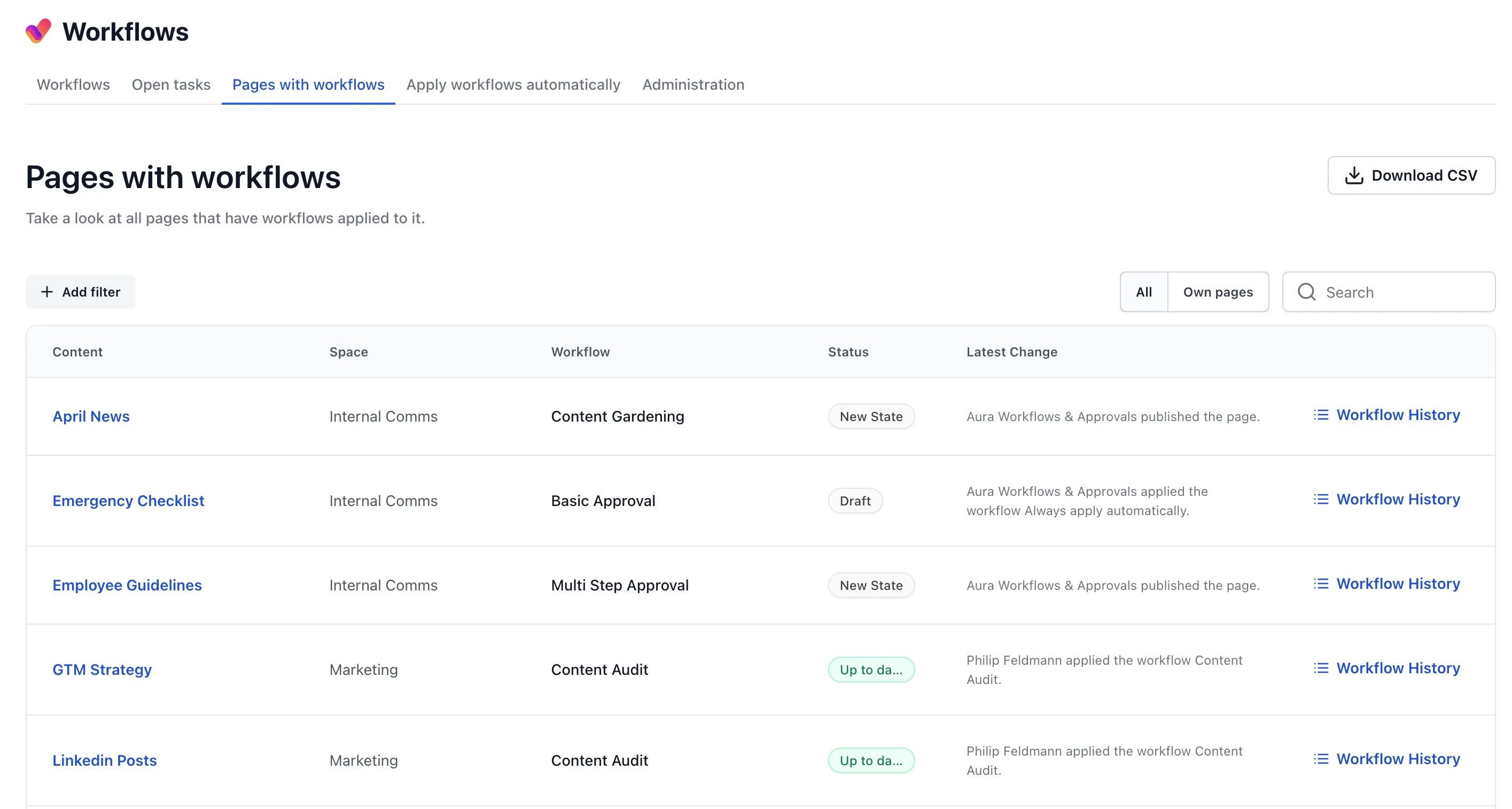
The neighbouring Pages with workflows tab gives admins and managers a wider view: every page across the instance that has a workflow applied, along with its current state, the workflow it’s running, and a link straight to the page. Each row reflects live state, so a page that just transitioned shows up with its new state immediately. Reach for it when you want to audit a rollout, find pages stuck in a particular state, or confirm that a recent bulk apply landed where it should have.
What the panel shows
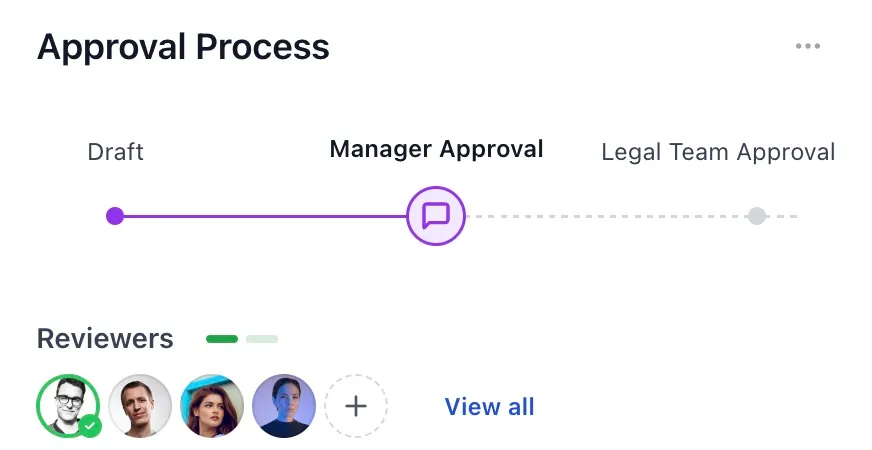
Section titled “What the panel shows”The panel lists every reviewer with their status: pending, approved, or rejected. A progress indicator at the top shows how close the page is to transitioning, for example two of three approvals collected, or one rejection from being sent back. If the workflow requires unanimous approval, every reviewer must vote before the page moves on.
Anyone with access to the page can open the panel and see who’s been asked to weigh in. Only reviewers see the action buttons.
Casting your vote
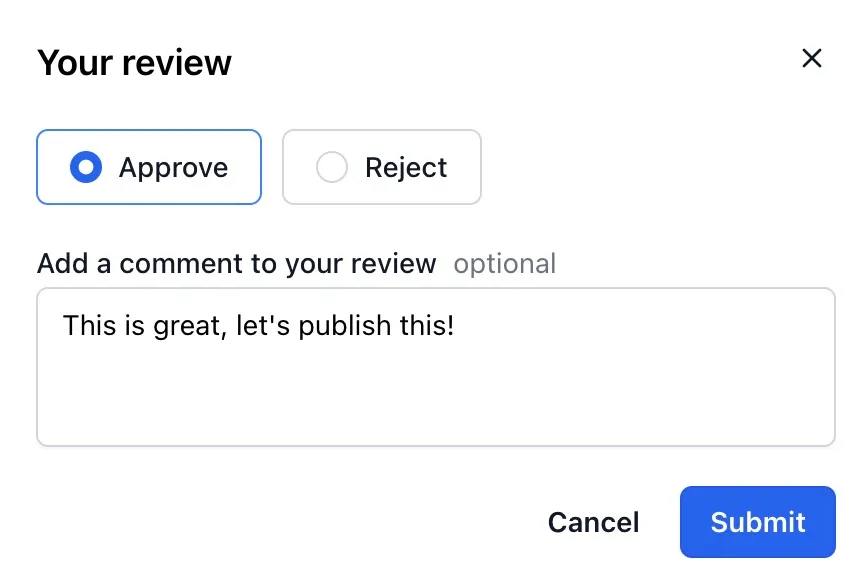
Section titled “Casting your vote”Click Add your review in the panel. A dialog opens with two choices, by default Approve and Reject, though the admin may have renamed them. Common alternatives are Publish and Send back, or Sign off and Decline. The labels are cosmetic; an Approve-equivalent click still records as an approval.
-
Open the page and click the workflow state in the byline.
-
Click Add your review.
-
Pick Approve or Reject (or whichever custom labels your admin set).
-
Add a comment if you want to leave context. Comments are optional on approvals, and optional on rejections too unless the admin enabled Require comment on rejection, in which case the dialog won’t submit without one.
-
Click Submit. Your vote is recorded and the panel updates immediately.
If the approval requires 2FA, Aura Workflows asks for the six-digit code from your authenticator app after you click Submit. Your selected option and comment stay intact while you enter the code, and you can go back before the review is recorded. If you have not set up 2FA yet, contact an admin. Setup is managed from Apps → Aura Workflows → 2FA after an admin enables it for your account.
Your vote is final the moment you submit successfully. There is no undo; if you change your mind, the only path is to ask the workflow’s admin (or anyone able to reset the workflow) to send the page back through the review state.
What happens after you vote
Section titled “What happens after you vote”If your approval cleared the threshold, the page transitions immediately. Same on the rejection side: a single rejection moves the page to the rejected state once the rejection threshold is reached, even if other approvals are in. The two thresholds run as a race, and whichever is hit first decides the outcome.
If you’re not the deciding vote, the page stays in review and the panel updates to show your status. The action buttons disappear for you. You can still leave broader thoughts on the regular Confluence comment thread; the comment attached to your vote lives only on that single action.
Arriving after the decision
Section titled “Arriving after the decision”If you open the page after the approval has resolved (someone else hit the final approval, or one rejection sent it back) the workflow has already moved on. The byline reflects the new state, and the panel shows the historical reviewers and votes for context but no buttons. Your vote was no longer required by the time you got there.
Pulling other people in
Section titled “Pulling other people in”If the admin enabled Allow adding reviewers on the fly, you can bring others in while the approval is pending via Manage reviewers in the panel. By default anyone with edit permission on the page can do this, but the admin can lock it down to existing reviewers. Added reviewers count toward the same thresholds and can vote as soon as they’re added. See Managing reviewers for the full picture.
Group reviewers
Section titled “Group reviewers”If you were added through a group rather than individually, you can still vote; group membership is checked at click time. One consequence: someone added to your group while the approval is pending becomes a reviewer too, and someone removed loses the ability to vote. Your single vote counts once, even if you appear on the list through multiple groups.
For tracking a page’s status without acting on it, see Viewing status.