
Workflow status on a page
When a workflow is applied to a Confluence page, Aura Workflows adds a section to the page byline, the row of metadata under the page title, beside the author and last-edited timestamp. The byline shows what state a page is in, what’s expected of you, and what’s coming next. Macros add richer displays inside the page body, but the byline is automatic: every viewer of a workflow-controlled page sees it without anyone embedding anything.
The byline
Section titled “The byline”The byline shows the workflow as three states: previous, current (highlighted with the state’s icon and color), and next. The current state’s name is the headline; past and future appear as smaller pills connected by lines, so you can see at a glance where the page sits in its lifecycle. Pages in a terminal state, such as Published or Archived, show the current state alone with no future stub.
The byline section’s header label also reflects the current state’s name, so the state is visible even when the byline is collapsed.
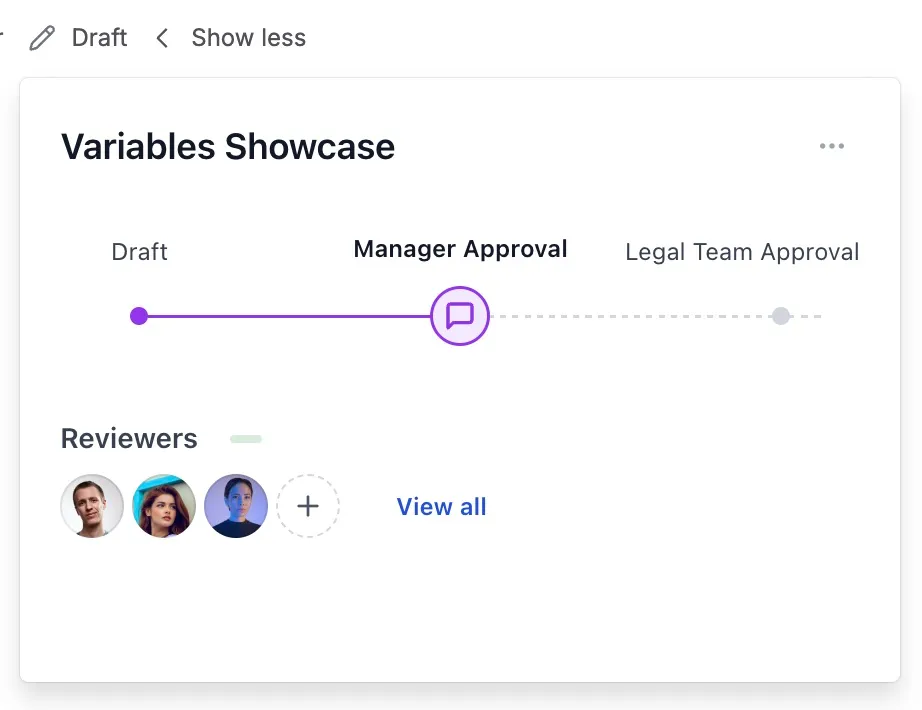
What appears beside the progress display depends on the kind of state. Approval states show a reviewer summary and, if you’re a reviewer, Approve and Reject buttons. Selection states show a dropdown of the next states a user can pick, with a button to confirm the move. Final states show no action and, if the state has an expiration or a page-edit transition, a note describing what happens next (“expires in 4 days”, “moves to Draft on edit”).
The Approve and Reject button labels can be overridden per workflow, so don’t be surprised to see “Publish” or “Sign off” instead. The behavior is the same.
What viewers without permission see
Section titled “What viewers without permission see”Everyone who can view the page sees the byline. State, progress, reviewer list, and pending-transition notes are visible to all viewers. What’s gated is the ability to act: only reviewers see the approve and reject buttons, only users with edit permission see the selection dropdown, and only space admins see the administrative options in the dropdown menu (below). For everyone else the byline is read-only.
The dropdown menu
Section titled “The dropdown menu”The three-dot menu at the right of the byline opens a small set of actions. View workflow opens a read-only diagram of the full workflow, useful for seeing which states come after the current one and what each transition does. Page variables opens the variables and metadata modal (see below). History opens the timeline of every state change, action, approval decision, and expiration on this page since the workflow was applied.
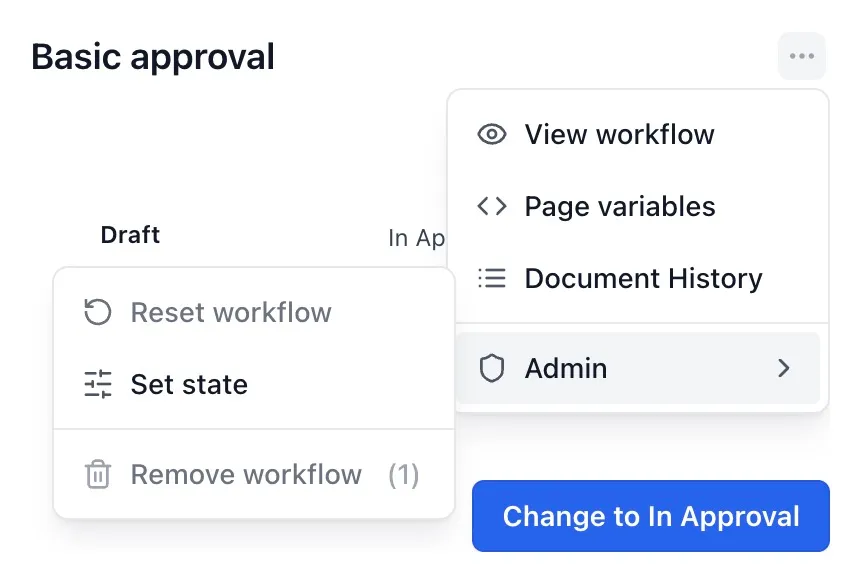
Space admins also see an Admin submenu. Reset workflow sends the page back to the initial state, clears pending approvals, and re-runs the initial state’s actions. Set state opens a modal for manually changing the current workflow state on this page. Remove workflow detaches the workflow entirely; it is delayed briefly in the menu to reduce accidental clicks.
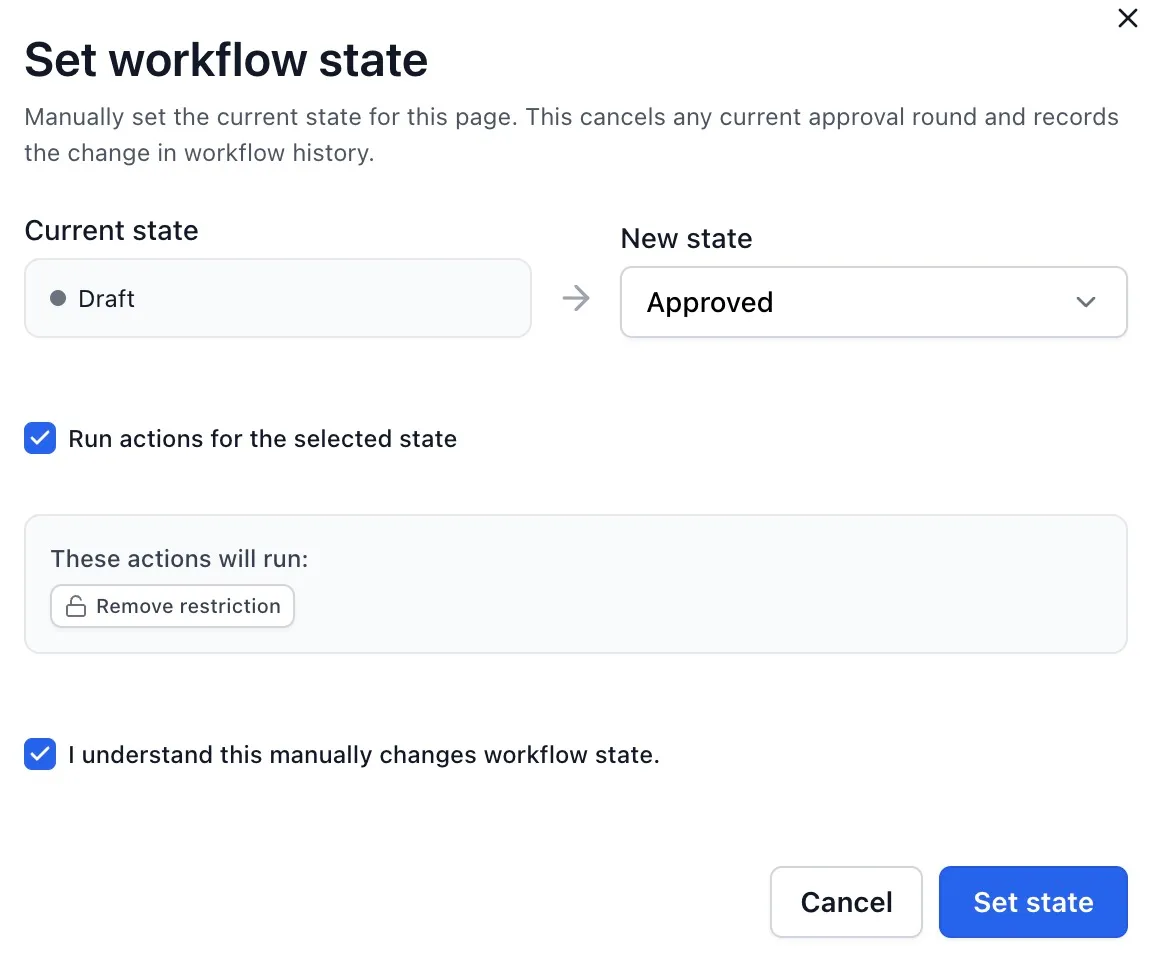
The Set state modal lets an admin choose any state in the workflow, including the current state. Re-entering the current state is useful when an approval round should be restarted, for example after reviewers change. The admin can choose whether the target state’s configured actions should run, and must confirm the manual change before applying it. The change is recorded in workflow history with the admin as the actor. If a review is currently active, that review round is cancelled and rebuilt for the target state.
Removing a workflow deletes the workflow instance and its pending notifications, but does not roll back side effects from past actions: restrictions, labels, and title edits added by earlier states stay on the page.
The page variables modal
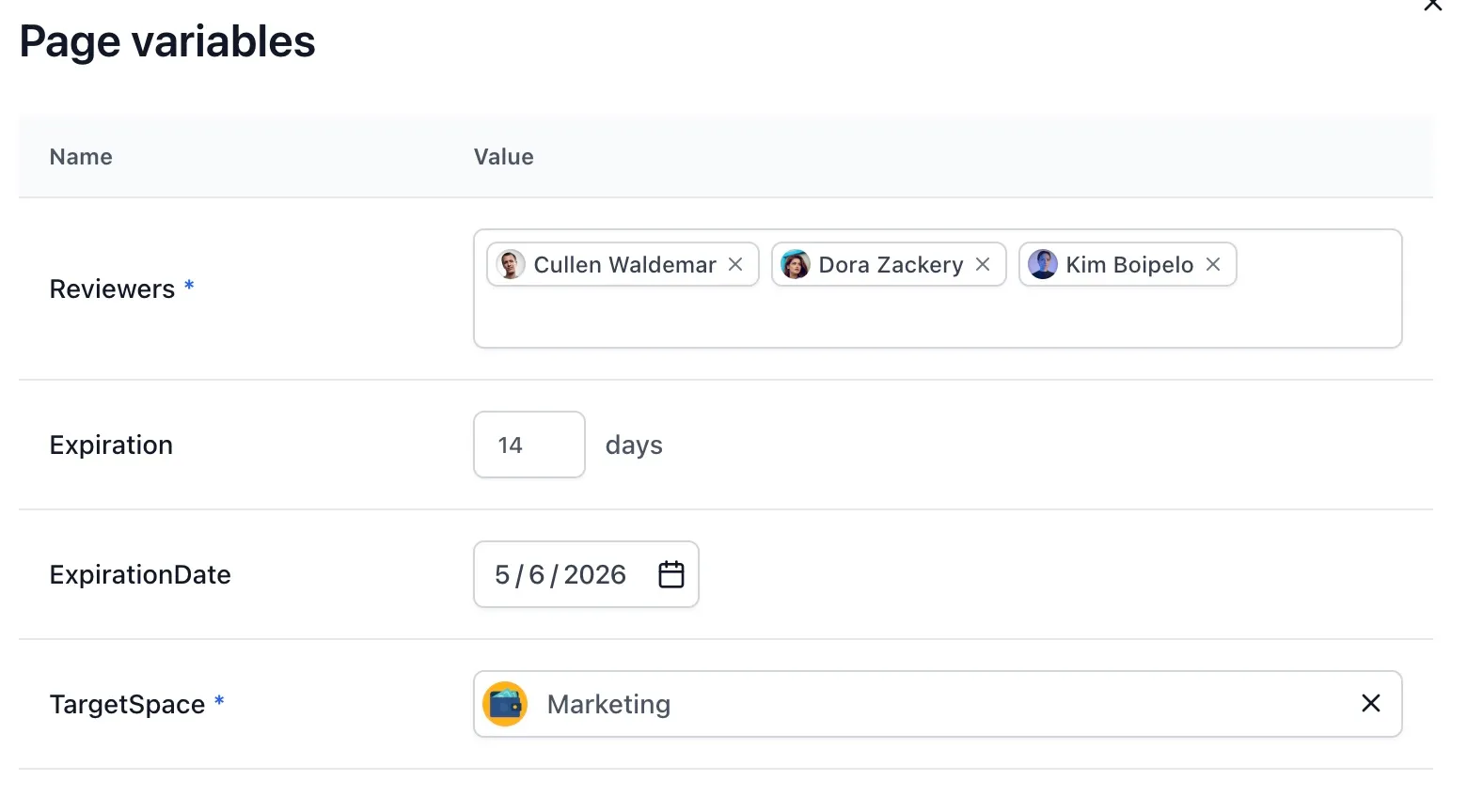
Section titled “The page variables modal”When a workflow uses variables (placeholders like reviewer groups, expiration durations, or per-page space references) the values often need to come from the page rather than the workflow definition. The Page variables modal is where they’re set. It opens automatically the first time a page enters a state that depends on a variable nobody has filled in yet, and can be reopened from the byline overflow menu at any time.
The modal lists every variable the workflow uses, grouped by type (users, groups, durations, dates, spaces), alongside any Additional metadata fields the workflow defines. Variables inherited from space variables or Confluence Page Properties are shown too, with an Other sources column indicating where the current fallback value comes from. You can leave the inherited value in place, or enter a page-specific value to override it for this page. Required variables only block progress when no page, Page Properties, or space value exists; required metadata fields still need to be filled directly in the modal.
If a state requires a variable that can’t be resolved from any source, the byline replaces its usual transition controls with a prompt: a short message that values are missing, and a button to open the page variables modal. The transition can’t be taken until the missing values are filled in. Saving the modal applies the new values immediately; if a transition was waiting on them, the byline returns to its normal state and the transition becomes available.
Variables are read at the moment they become relevant. Once a state has run, changing a variable afterwards has no effect on what already resolved: swapping the reviewer group on a page already in review doesn’t add new reviewers to the in-flight approval. To pull in new reviewers on a live approval, use the manage-reviewers controls on the byline instead.
How macros relate to the byline
Section titled “How macros relate to the byline”Aura Workflows ships a handful of macros that admins or page authors can drop into the page body. They render in the page content like other Confluence macros and can show workflow metadata, official versions, or history alongside the page content.
The split is straightforward. The byline is automatic and always present on a workflow-controlled page; macros are explicit elements you add when you want workflow information embedded in the body, in a richer format, or in a specific place. The byline keeps working alongside whatever macros are on the page.
For the approver flow specifically (what reviewers see, how to leave comments, how to reassign) see reviewing content. For how a workflow gets applied to a page in the first place, see applying workflows.