
Managing reviewers
When a review needs more eyes (a subject-matter expert, a stand-in for someone on leave, a late second approver) Aura Workflows lets reviewers be added and removed mid-flight without resetting the page. This requires the admin to enable Allow adding reviewers on the fly on the approval transition. If you don’t see the controls below, that switch is off and the reviewer list is fixed. The admin-side configuration lives on the Approvals page; this page covers the reviewer-facing side. For voting basics, see Reviewing content.
Where to find it
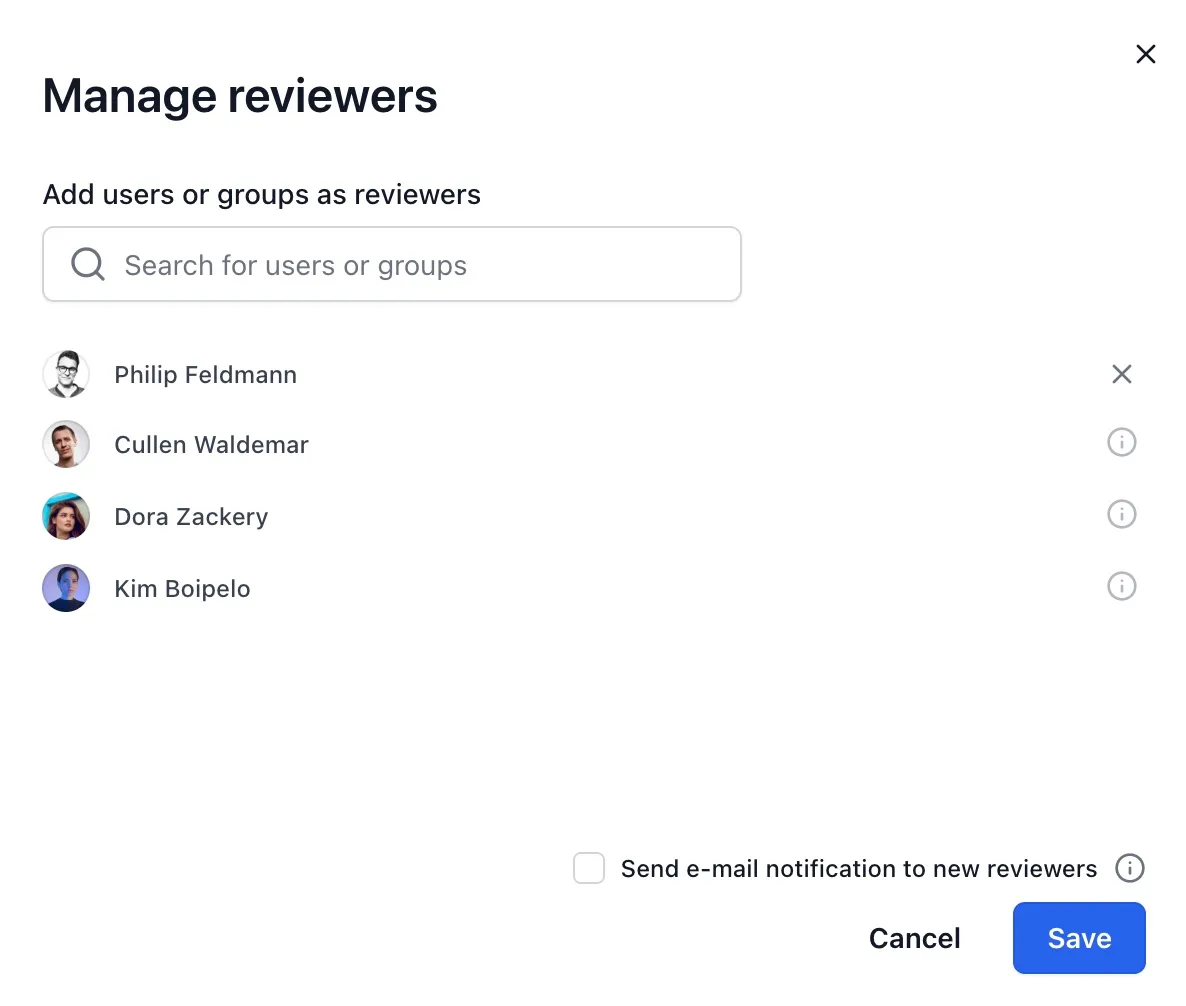
Section titled “Where to find it”The reviewer chips sit in the page byline next to the workflow status. A dashed circle with a plus at the end of the row opens Manage reviewers, a modal with a search box, the current reviewer list, and a checkbox for emailing the people you add. View all opens the same modal when the reviewer list is collapsed.
Who can manage reviewers
Section titled “Who can manage reviewers”By default anyone with edit permission on the page can open the modal. When the admin also enables Only existing reviewers can add reviewers on the transition, the control is restricted to people already on the reviewer list, named directly or via a reviewer group. Page editors who aren’t reviewers don’t see the button at all in that mode. Group reviewers count as existing reviewers for this check.
Adding reviewers
Section titled “Adding reviewers”The search box in Manage reviewers finds users and groups. Picking one adds them to the list as a pending reviewer on Save. The Send e-mail notification to new reviewers checkbox controls whether they receive an assignment email; it’s off by default and applies only to the reviewers added in this dialog. The workflow’s Initially notify reviewers via email setting governs the one-shot email sent when a page first enters the approval state, not later additions; the two are separate.
When the admin has set Limit adding to the following reviewers on the approval, the search box is replaced with a quick-add list of the users and groups they configured. Click Add next to a name to stage it; staged names move down into the reviewer list and disappear from the available list above. Removing a staged name with the X button moves it back up. The list is exhaustive — anyone outside it can’t be added, even via search. If the admin enabled the limit but left the list empty, the add UI is hidden entirely.
Added reviewers are full reviewers. Their approvals and rejections count toward Min. approvals and Min. rejections the same as preassigned reviewers, and under Require all reviewers approval they must vote with everyone else for the page to transition. Adding a reviewer can therefore raise the bar in unanimous mode: one more voice that has to approve.
Removing reviewers
Section titled “Removing reviewers”Pending reviewers added on the fly can be removed from the same modal with the X button next to their row. Two cases lock removal: reviewers from the workflow definition are preassigned and can’t be removed, and any reviewer who has already approved or rejected is locked in. Hovering the disabled icon explains which case applies. Their vote stays on the record either way.
Removing reviewers can never push a rejection over the line, because rejections are counted from votes already cast, not from outstanding reviewers.
Group reviewers
Section titled “Group reviewers”A group reviewer is stored as the group, not its members. Adding a group means everyone in it can act on the approval; membership is checked at click time. Removing a group removes the group entry but does not cancel approvals already submitted by individual members, which remain on the record and continue to count. When Require all reviewers approval is on, every member of every reviewer group must approve, so adding a large group on the fly can quietly require dozens of approvals; the modal warns when the resolved reviewer count is unusually high.