
Read confirmations
Read confirmations are a way to require viewers of a page to acknowledge that they’ve read it. Turn them on for a page and a banner appears at the top asking each reader to confirm. Confirmations are recorded against the version of the page each user confirmed, so when the page is edited later you can see exactly who is still acknowledging an outdated version.
The feature is per-page. There is no workflow state, no transition, and no admin setup — anyone who can edit a page can enable confirmations on it.
Turning it on for a page
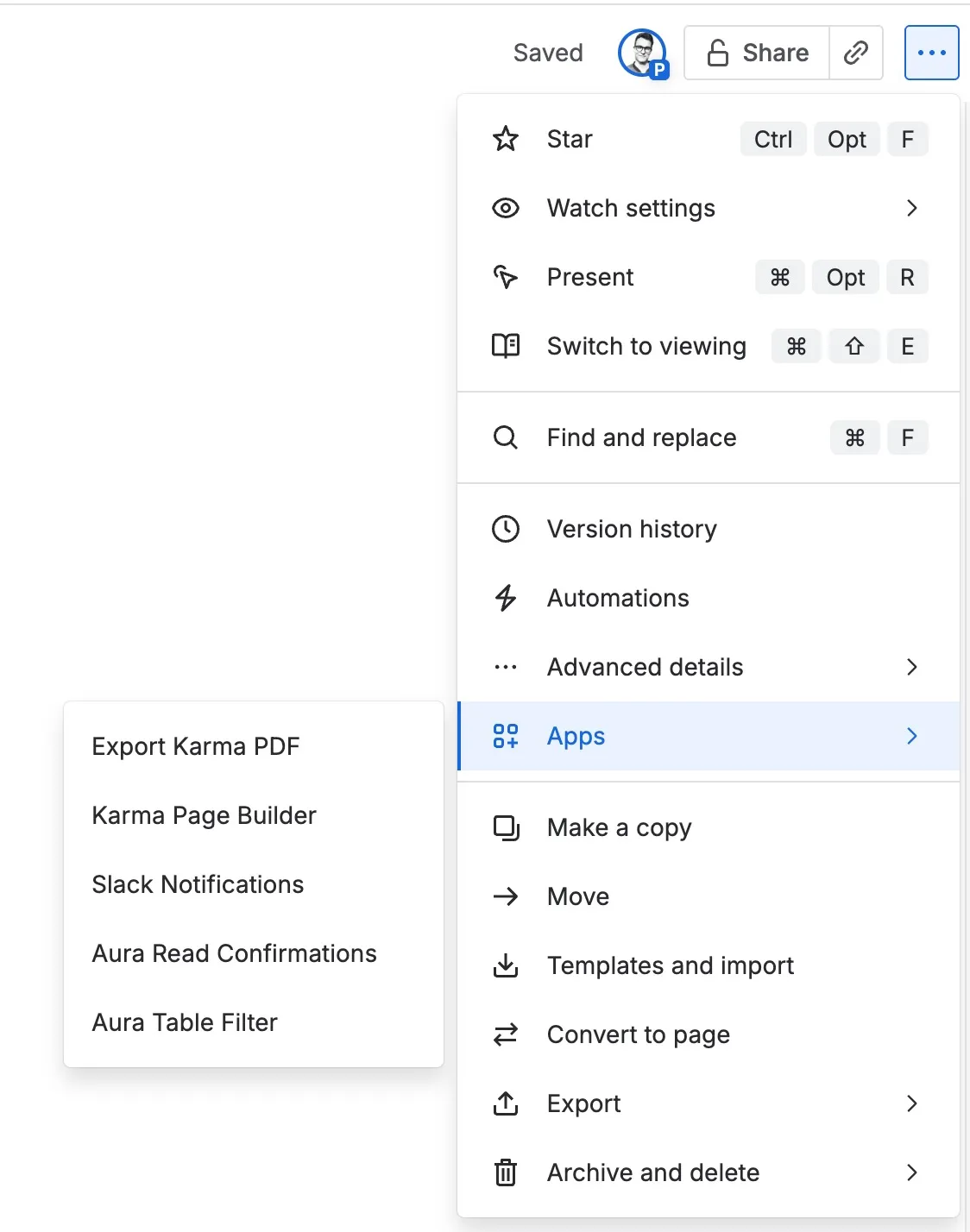
Section titled “Turning it on for a page”Open the page and choose Aura Read Confirmations from Confluence’s content actions menu (••• in the page header → Apps).
The dialog that opens is the read-confirmations control panel for that page. Until anything is configured, it shows Read confirmations are disabled with an Enable for this page button — clicking that button is equivalent to flipping the Enable confirmations switch in the top-right corner. The banner appears on the page within seconds.
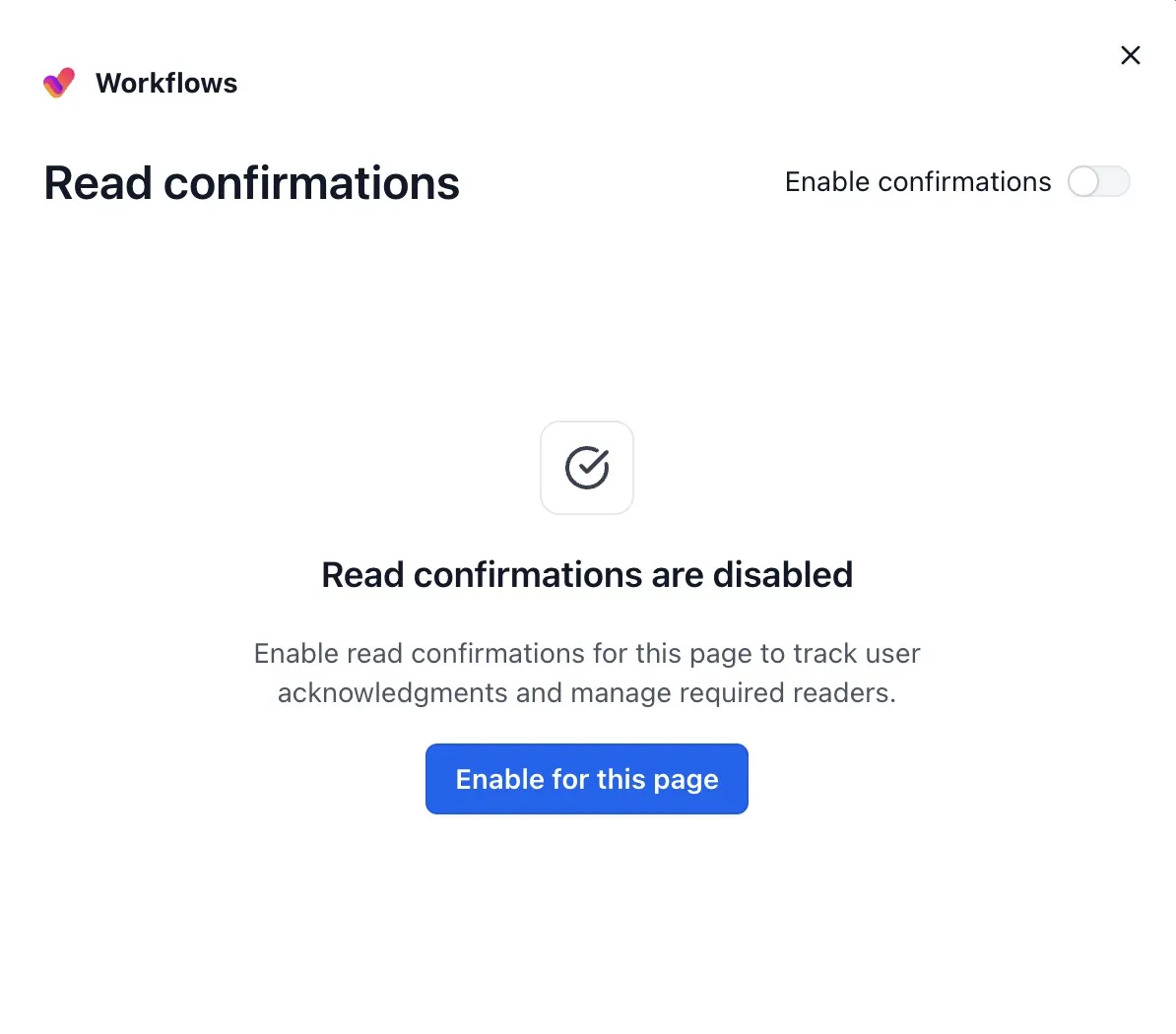
The same switch turns the feature off again. Disabling removes the banner from the page but does not discard the confirmation history; if you re-enable later, the prior confirmations come back. To enable or disable, you need edit permission on the page.
What readers see
Section titled “What readers see”While confirmations are on, a banner sits above the page body for every viewer who hasn’t confirmed yet. It reads Have you read this page? with a short instruction and a Confirm button. The banner shows the page’s current version number as a badge — a quick visual cue for what the reader is about to attest to.
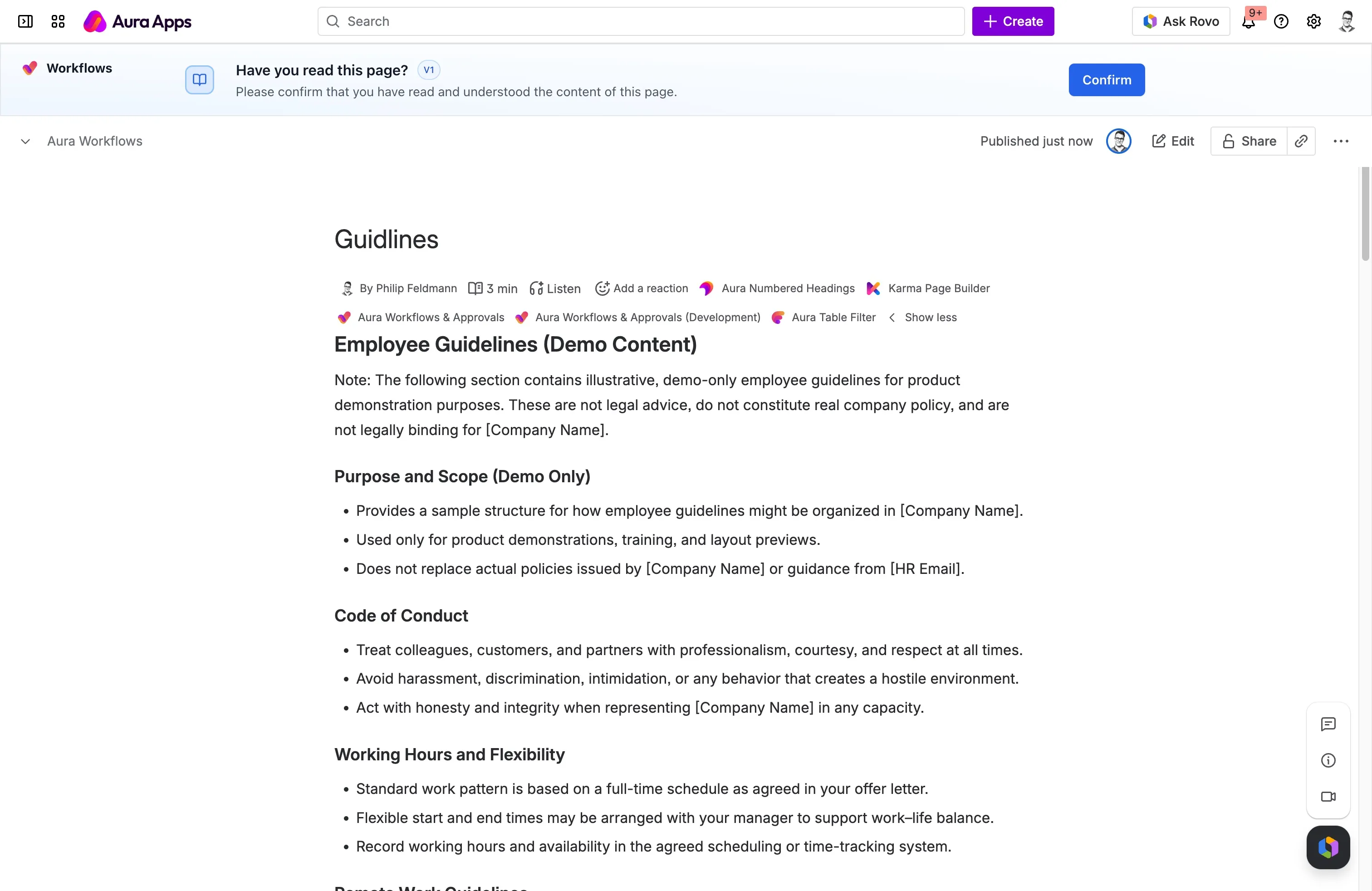
A click on Confirm records the confirmation against the user and the version of the page they’re looking at. The banner disappears for that user. Other readers still see it until they confirm too. Anyone with view access on the page can confirm; you do not need edit permission.
There is no comment field and no “decline” path. The feature is an acknowledgement, not an approval — for sign-off with vote thresholds, use Approvals instead.
When the page is edited
Section titled “When the page is edited”Confirmations are version-scoped. Each one stores the page version that was current when the user clicked Confirm. The next time someone publishes a new version of the page in Confluence, every existing confirmation is now against an older version, and Aura treats it as stale.
For readers with a stale confirmation, the banner returns — in a different colour, with the heading A new version of this page is available. A View changes link opens Confluence’s built-in version-comparison view between the version they confirmed and the current one, so they can see exactly what changed before re-confirming.
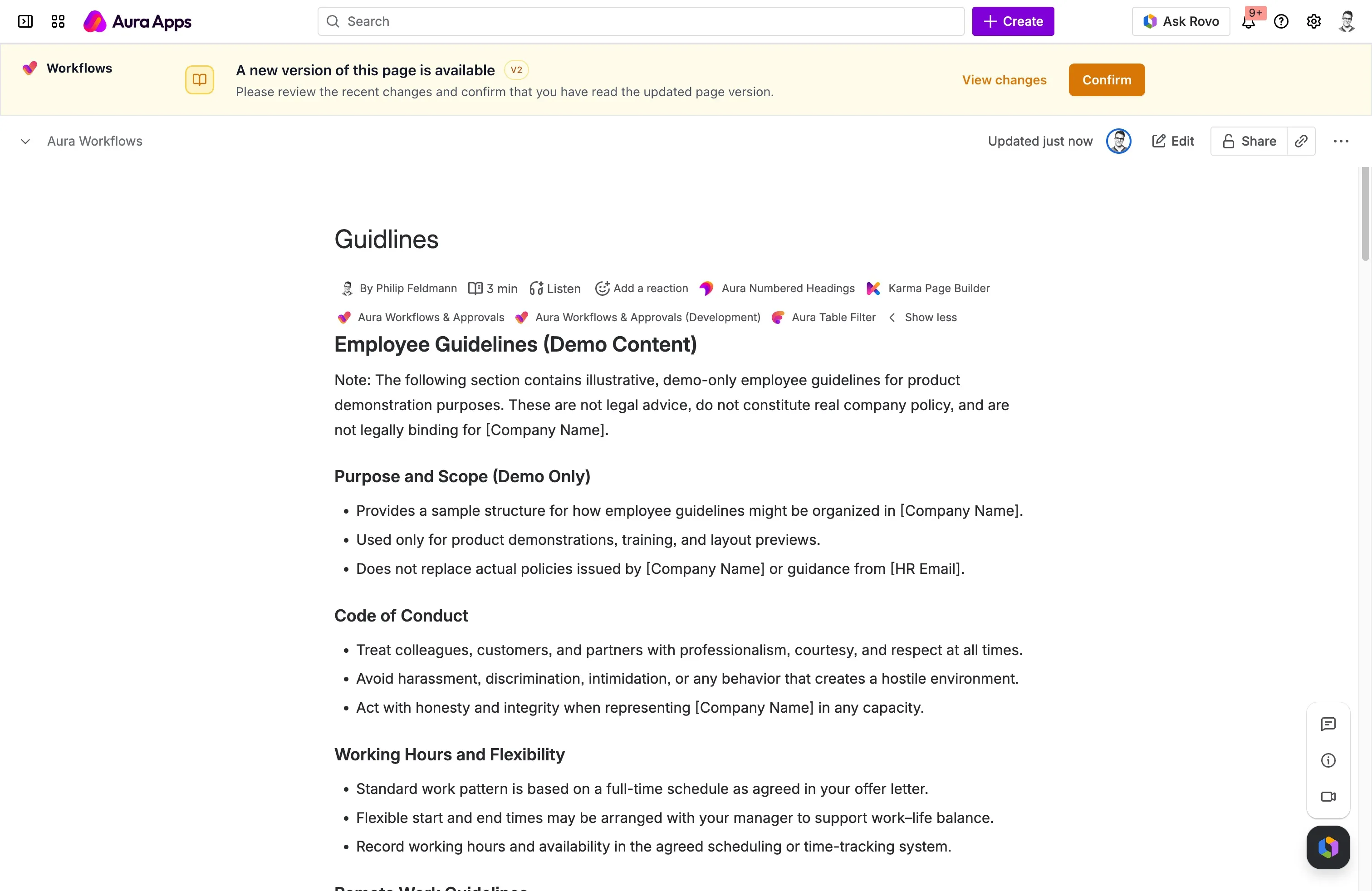
A user who never confirmed sees the same default banner as before — staleness only applies to people who had previously confirmed. When a stale user re-confirms, the new confirmation replaces the previous version reference and the banner clears for them again.
Tracking who has confirmed
Section titled “Tracking who has confirmed”Re-open Aura Read Confirmations on an enabled page and the body of the dialog shows the Confirmed by list: every user who has confirmed, the date and time, and the version they confirmed against. The list is sorted with the most recent confirmations first, four per page.
A warning icon next to the version means that confirmation is now stale — the page has moved on since they confirmed. Hover the icon for Confirmed an older version of this page. There is no “remind” button; staleness surfaces in the overview so you can chase the right people through whatever channel you normally use.
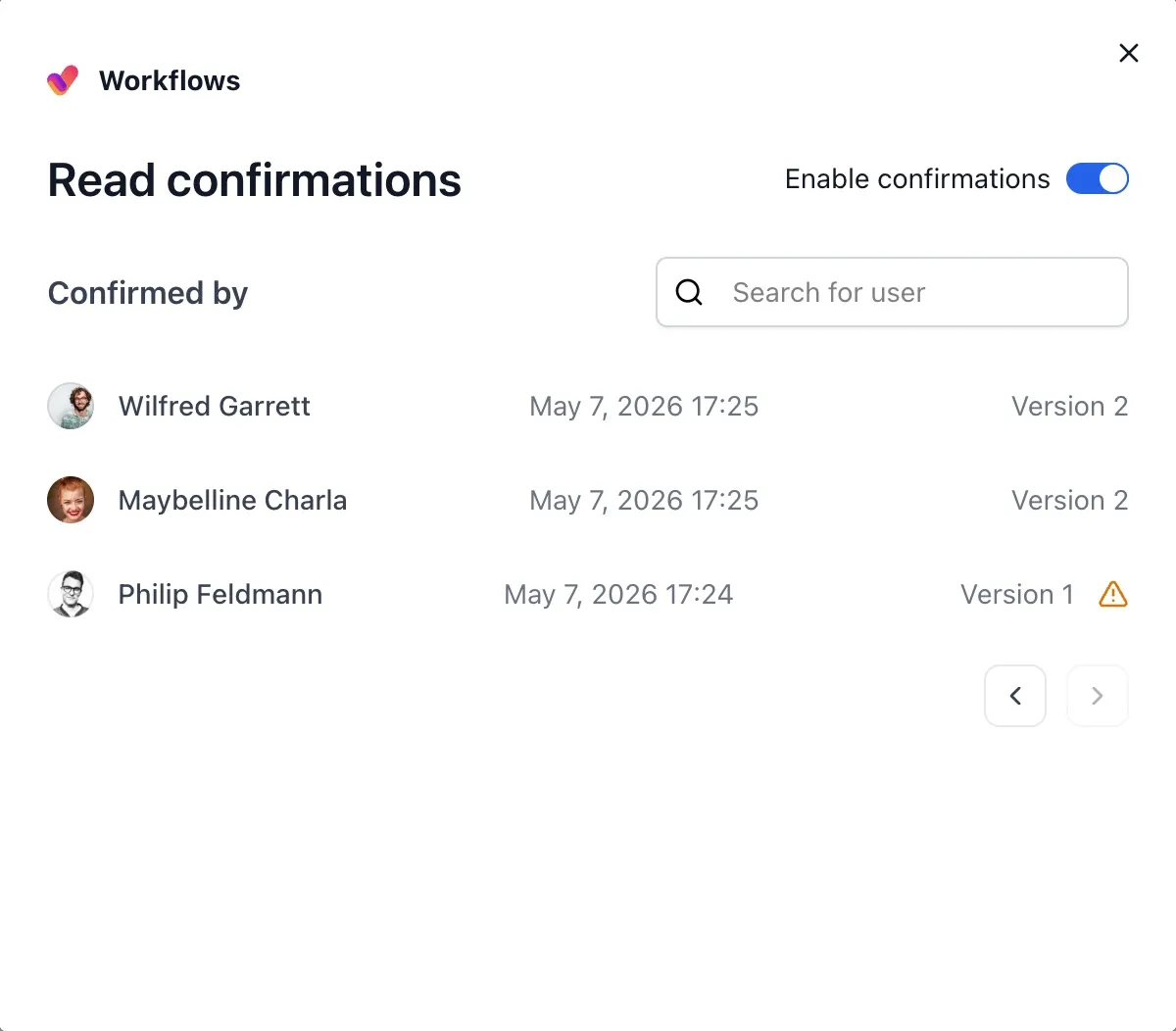
Use the Search for user field at the top of the list to filter to a single person. This is the fast path when you want to check whether one specific reader has confirmed and which version they’re on.
If nobody has confirmed yet, the dialog shows No confirmations yet instead of the list. If you turn the feature off without anyone having confirmed, the dialog drops back to the Read confirmations are disabled view shown above.
How it interacts with publishing
Section titled “How it interacts with publishing”On a published page produced through a workflow’s Publish page action, read confirmations are independent of the publish step. Enabling confirmations on a source page does not enable them on the published copy, and vice versa. If you want readers of the published version to acknowledge it, enable confirmations on the published page directly.
The version number tracked by a confirmation is the Confluence page version of the page the user is viewing. On a published copy, that is the version of the published copy, not the source — which is what you want, since the published copy is the document of record for those readers.
When to use it
Section titled “When to use it”The clearest fit is mandatory-reading content where you need an audit trail: policies, compliance documents, security guidance, change announcements that affect a specific team. The version-scoped record means that six months later, when someone asks “who had read the most recent version of the security policy as of March?”, the Confirmed by list answers it directly.
For lighter signals — did anyone read this? — Confluence’s view analytics already tell you. Reach for read confirmations when the question is did this specific person attest to this specific version?.