2FA approvals
Two-factor authentication adds an authenticator-app check to selected approval steps. It is controlled by admins, configured per approval transition, and only applies when a reviewer tries to approve or reject a protected step. It does not change who is a reviewer, how thresholds are counted, or which state the workflow moves to after the decision.
Aura Workflows uses time-based one-time passwords, the same kind of six-digit code used by many authenticator apps. Reviewers scan a QR code once, then enter the current code from their app whenever a protected approval asks for it.
Who can use 2FA
Section titled “Who can use 2FA”2FA enrollment is admin-controlled. Users cannot invite themselves, create their own setup, or reset their own authenticator app from the user screen. An admin must add the user under Apps → Aura Workflows → Administration → 2FA before that user can complete setup.
The admin view separates users into Pending and Active. Pending means the user has been invited by an admin but has not finished connecting an authenticator app. Active means the user has confirmed a code and can complete protected approvals. Revoking a user removes their 2FA setup from Aura Workflows. If they need 2FA again later, an admin adds them again and the user completes a new setup.
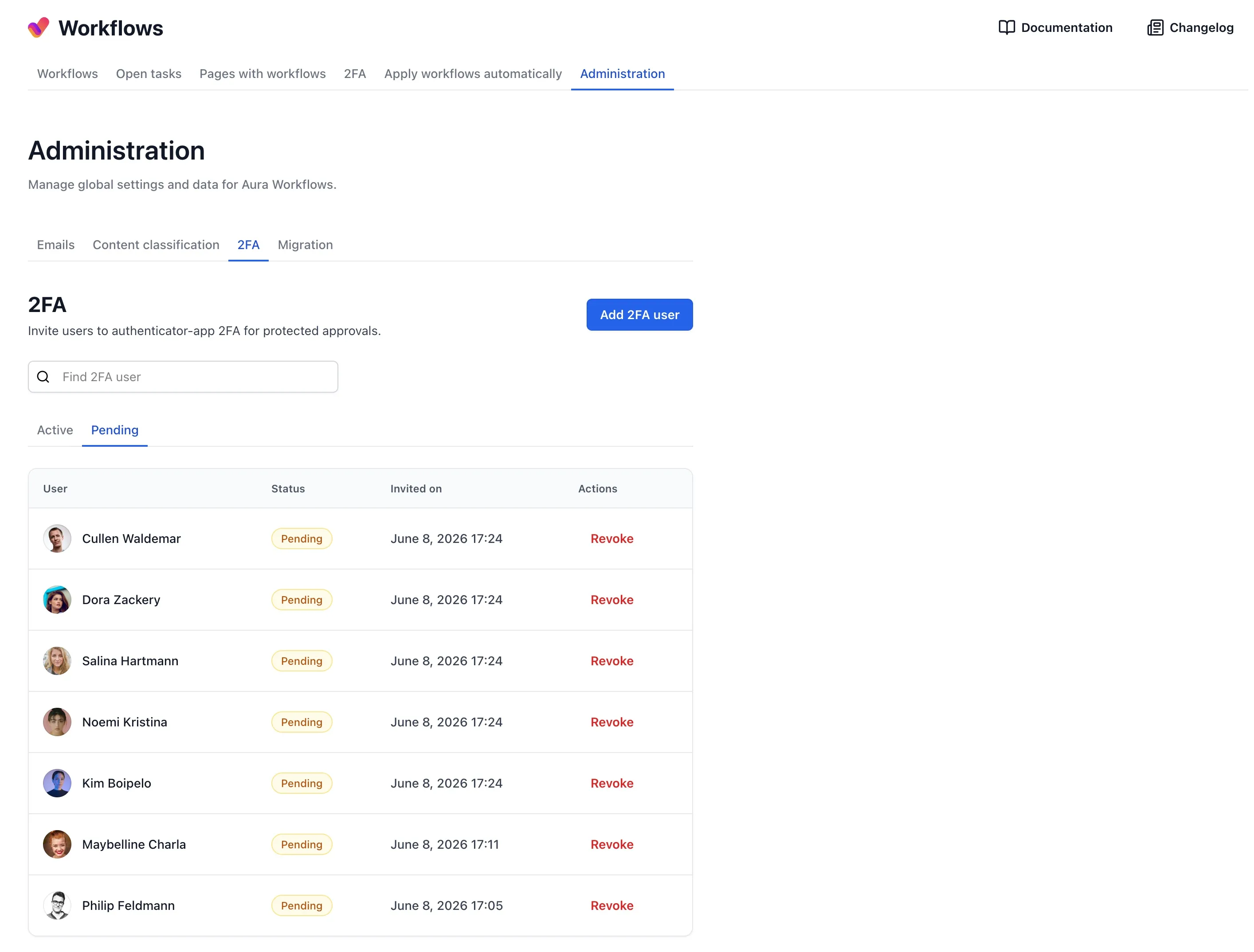
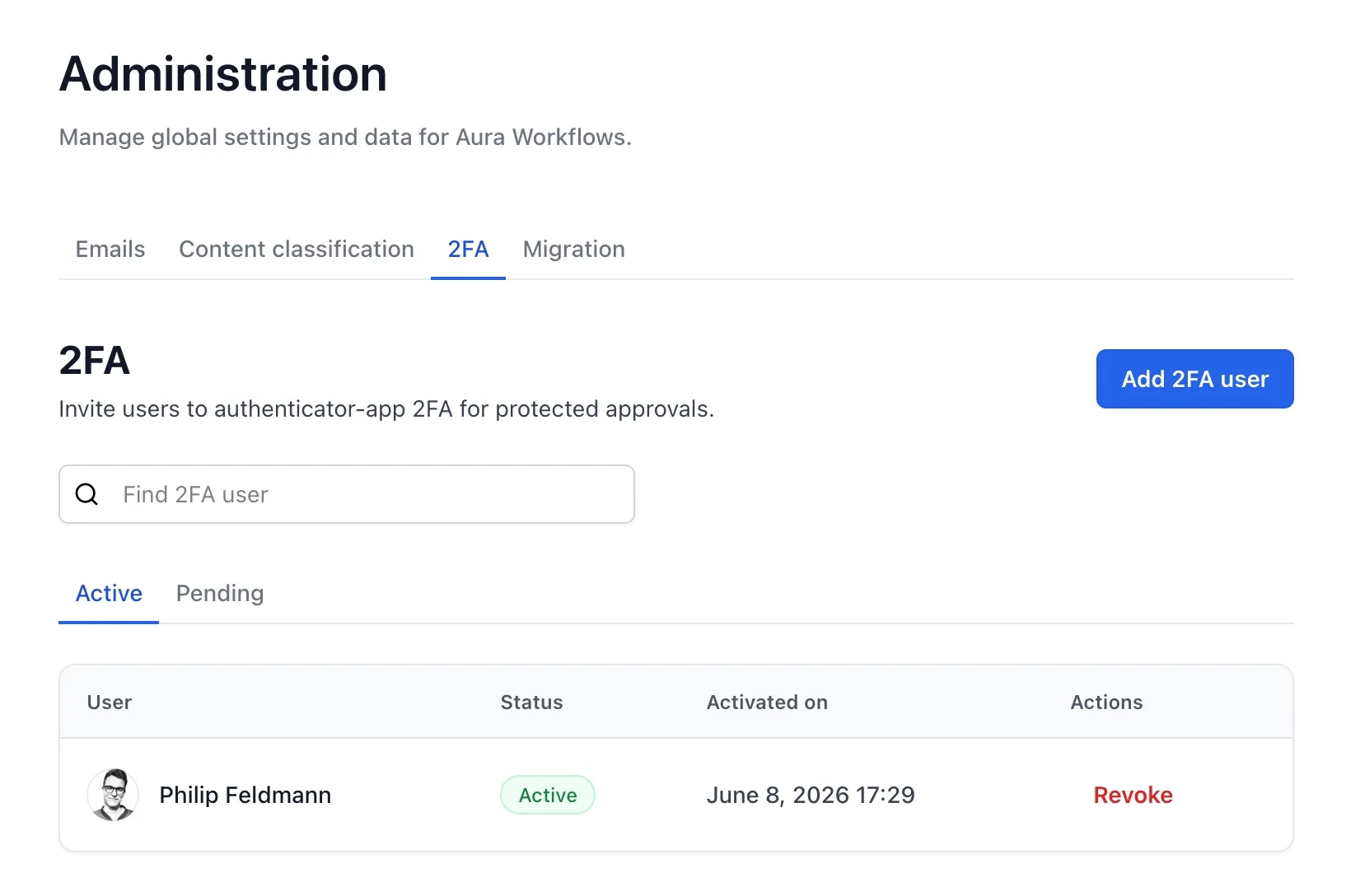
There is no global switch that turns 2FA on for every workflow. A user can be active for 2FA and still approve normal workflow steps without entering a code. A user can also be pending or not enrolled at all until a workflow step actually requires 2FA.
Adding users
Section titled “Adding users”Open Apps → Aura Workflows → Administration → 2FA and click Add 2FA user. Search for the Confluence users who should be allowed to set up an authenticator app, select them, and confirm the dialog. They appear in the Pending list immediately.
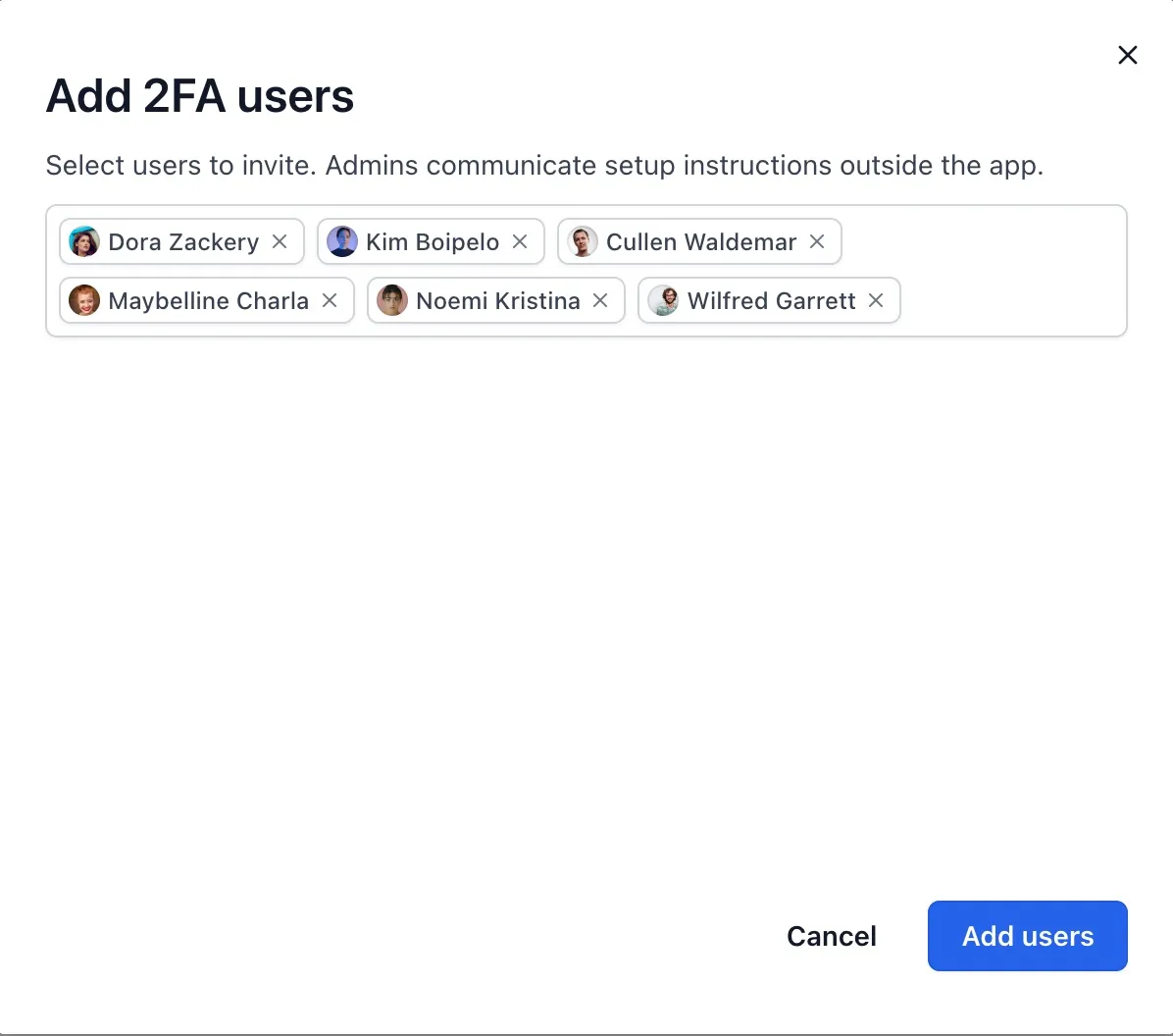
Aura Workflows does not email a setup link or QR code. Ask the user to open Apps → Aura Workflows → 2FA while signed in to Confluence. Keeping setup inside the product avoids sending the authenticator secret through email or chat.
If you revoke an active user, their existing authenticator entry stops working for Aura Workflows. Revocation does not remove the entry from their phone; they can delete it from their authenticator app themselves. If you add them again, they receive a new setup with a new QR code.
User setup
Section titled “User setup”Users complete setup from Apps → Aura Workflows → 2FA. If they have not been added by an admin, the page tells them that 2FA is not enabled for their account. That state is informational only; there is no self-service request button.
Pending users see a two-step setup flow. First, they scan the QR code with their authenticator app. If they cannot scan it, they can copy the manual code and enter it in the app instead. The authenticator entry is labelled for Aura Workflows and the current Confluence site, so users can tell it apart from entries for other products or test sites.
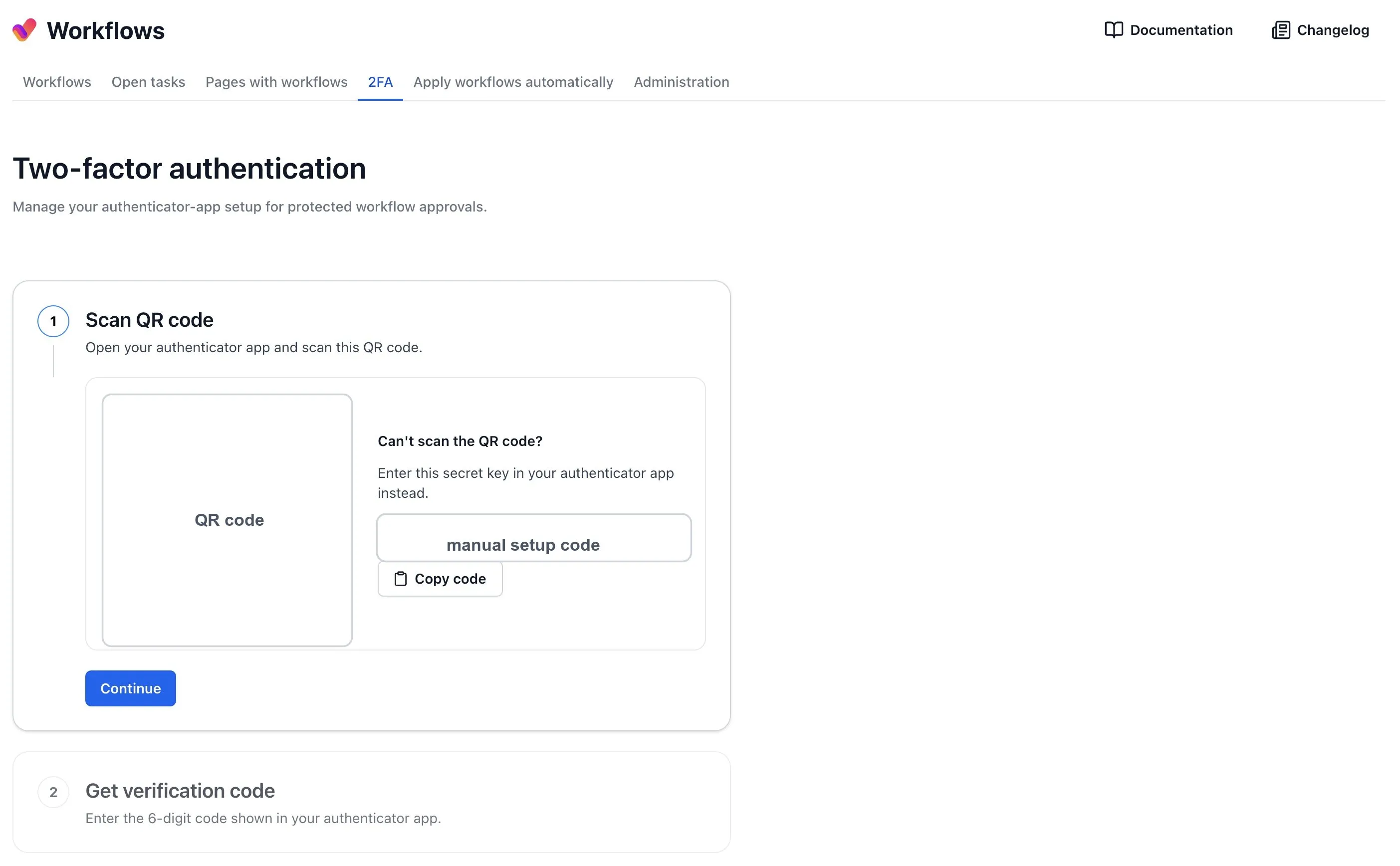
After scanning, the user clicks Continue, enters the six-digit verification code from the authenticator app, and clicks Confirm setup. Aura Workflows only marks the setup active after a valid code is submitted. Once active, the same page shows the setup as complete. Users do not need to keep the QR code open after setup.
If a user gets a new phone, loses access to their authenticator app, or scans the wrong code, an admin should revoke them and add them again. The user then completes a fresh setup. Users cannot reset themselves because a reset would let anyone with access to an already-open Confluence session attach a new authenticator app.
Requiring 2FA on an approval
Section titled “Requiring 2FA on an approval”2FA is enabled per approval transition in the Workflow Builder. Select the approval transition, open Advanced, and turn on Require 2FA. The setting is off by default for new and existing approval steps.
When Require 2FA is on, both approve and reject actions for that approval require a valid code. The setting belongs to the approval step rather than to a particular button because the same verification protects both directions. Thresholds still behave exactly as described in Approvals: the code check decides whether the review action is accepted, then the normal approval or rejection rules decide whether the workflow transitions.
A reviewer who is not active for 2FA cannot complete a protected approval. They are told to contact an admin. The page does not transition, their vote is not recorded, and other reviewers can still act according to the normal reviewer rules.
Reviewing with 2FA
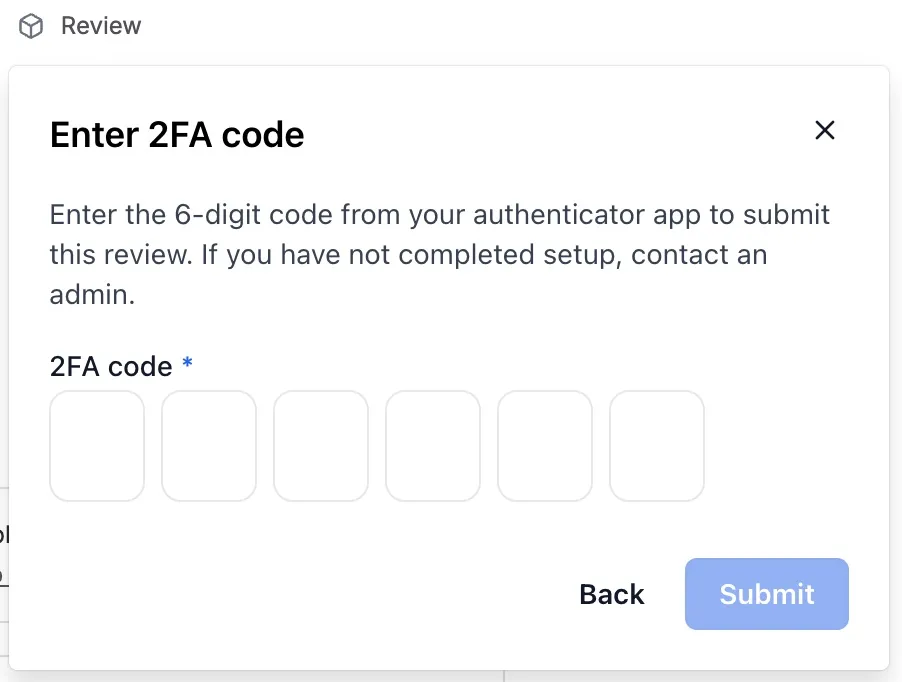
Section titled “Reviewing with 2FA”For reviewers, the flow starts the same way as any other approval. They open the workflow panel, click Add your review, choose the approve or reject option, add a comment if needed, and click Submit. If the step requires 2FA, Aura Workflows then asks for the six-digit code from the authenticator app.
The selected option and comment are kept while the code screen is open. Reviewers can go back to adjust their choice or comment before submitting the code. Aura Workflows records the review only after the code has been verified successfully. If the code is wrong or expired, the reviewer stays on the code screen and can try the current code from their app.
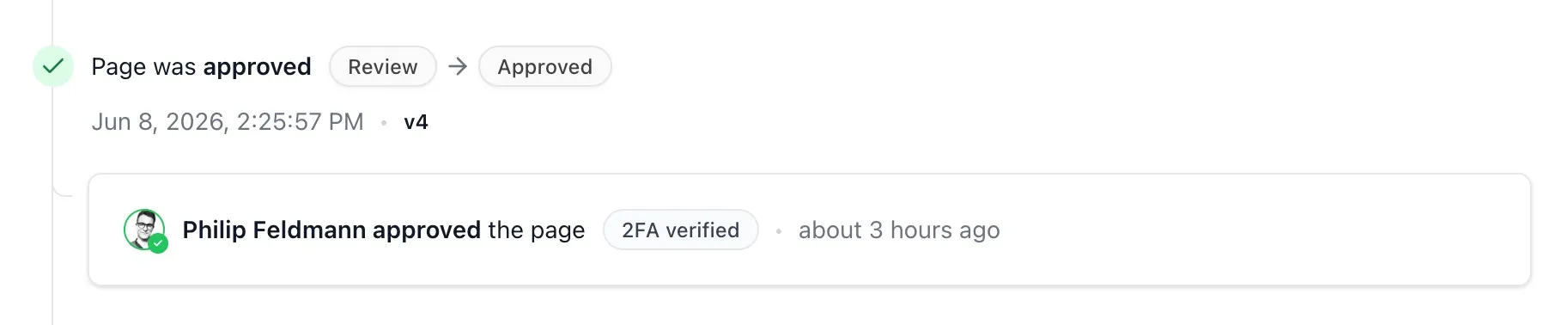
Successful protected reviews are marked in workflow history with 2FA verified. The badge means the approve or reject action passed the configured 2FA check at the time it was submitted. Failed code attempts are not shown in the workflow history.